

Supporters are individuals who are impacted by a leader's behavior and are willing to support the leader by providing ongoing feedback and feedforward. Before adding a Supporter, we highly recommend that the Participant verbally enrolls them. This will not only help create commitment with the Supporter, but it will help support both behavior and perception change. Let's look at the steps:
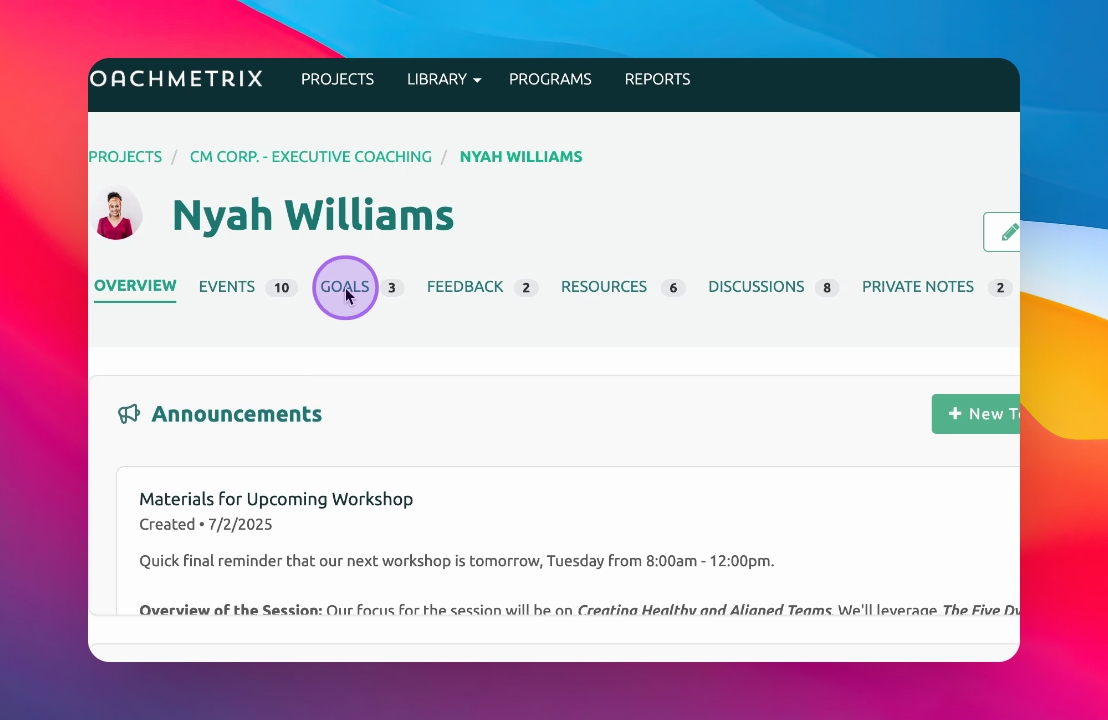
Step 1: Open Goals Tab
Click on the Goals tab in CoachMetrics.
Step 2: Add Supporter
Scroll down and click on the Add new button. Enter the supporter's name and email address. Choose a relationship label (manager, direct report, peer, or other).
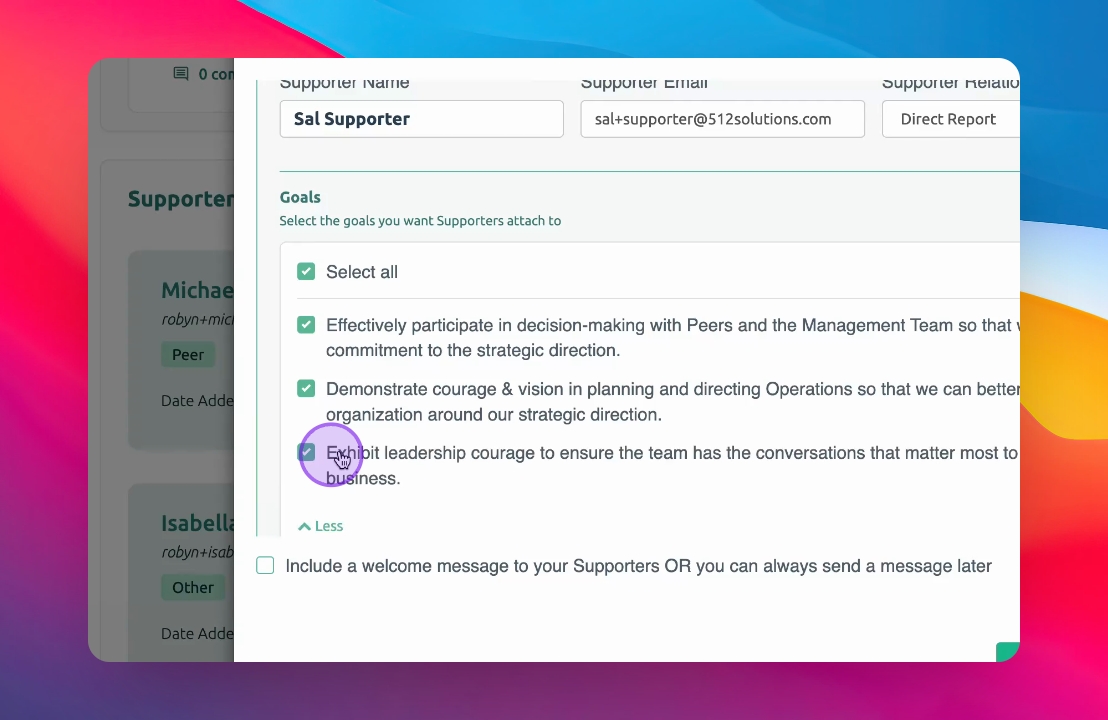
Step 3: Assign Goals
The supporter will automatically be assigned to all participant goals. Uncheck any goals that do not apply to the supporter.
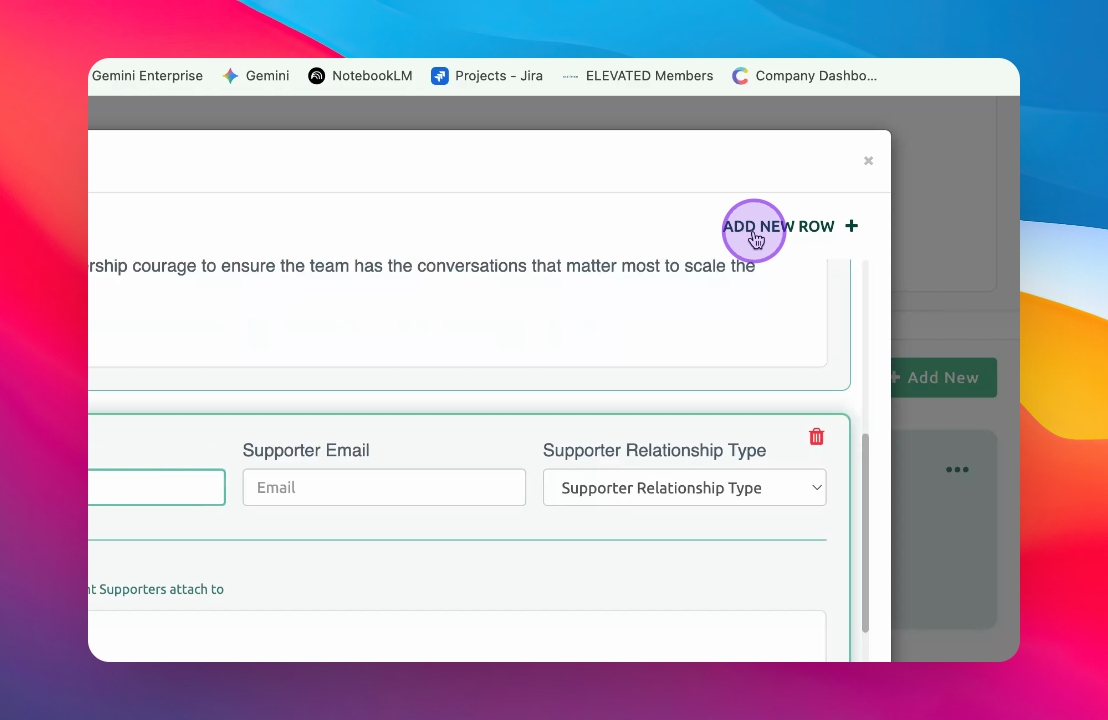
Step 4: Add More Supporters
If adding more supporters, click on Add New row. Enter their name, email, and relationship type, then click on Add Supporters.
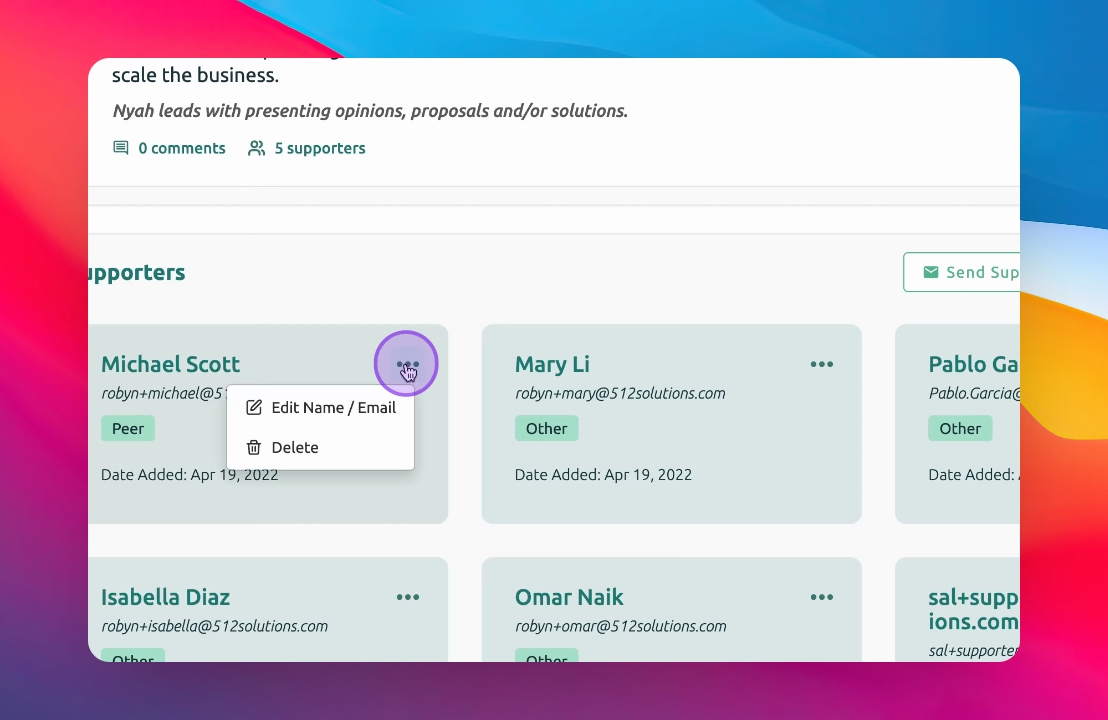
Step 5: View Supporters
Your supporters will appear at the bottom of the page, showing their labels. To edit a label, click on it and update the information.
Step 6: Check Pulse Feedback
If you have three or more supporters of a specific label, those labels will show next to their names in Pulse feedback data. Labels won't show if there are fewer than three to maintain anonymity.
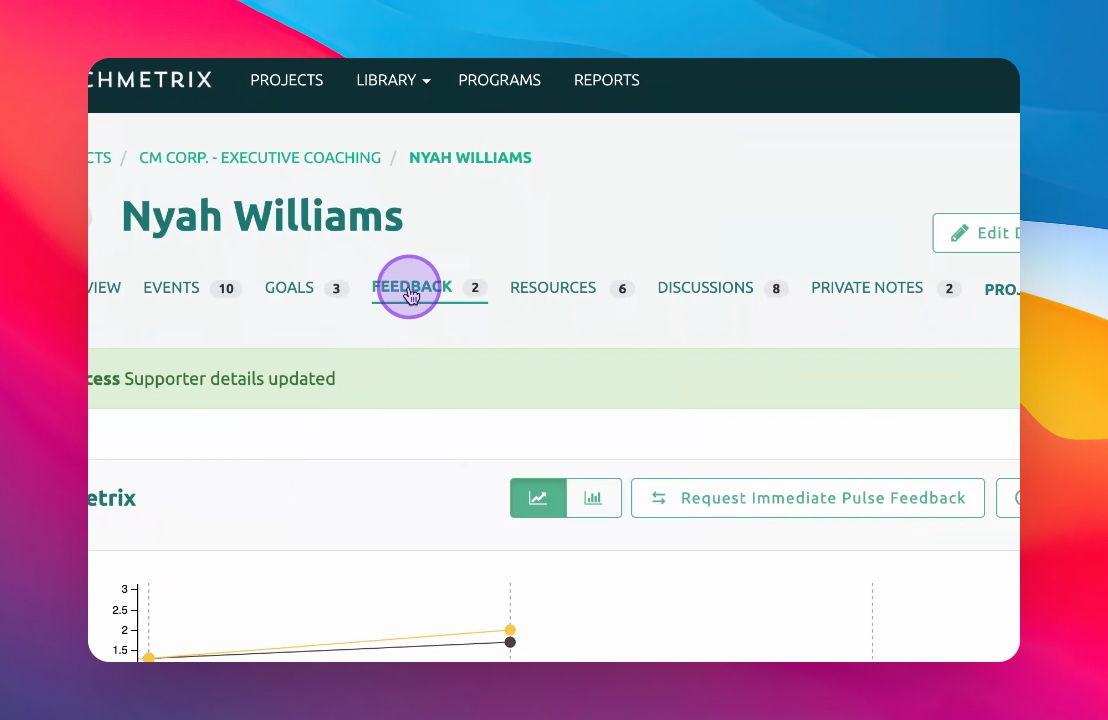
The manager's label will always be visible on the Pulse feedback page, similar to a 360 process.