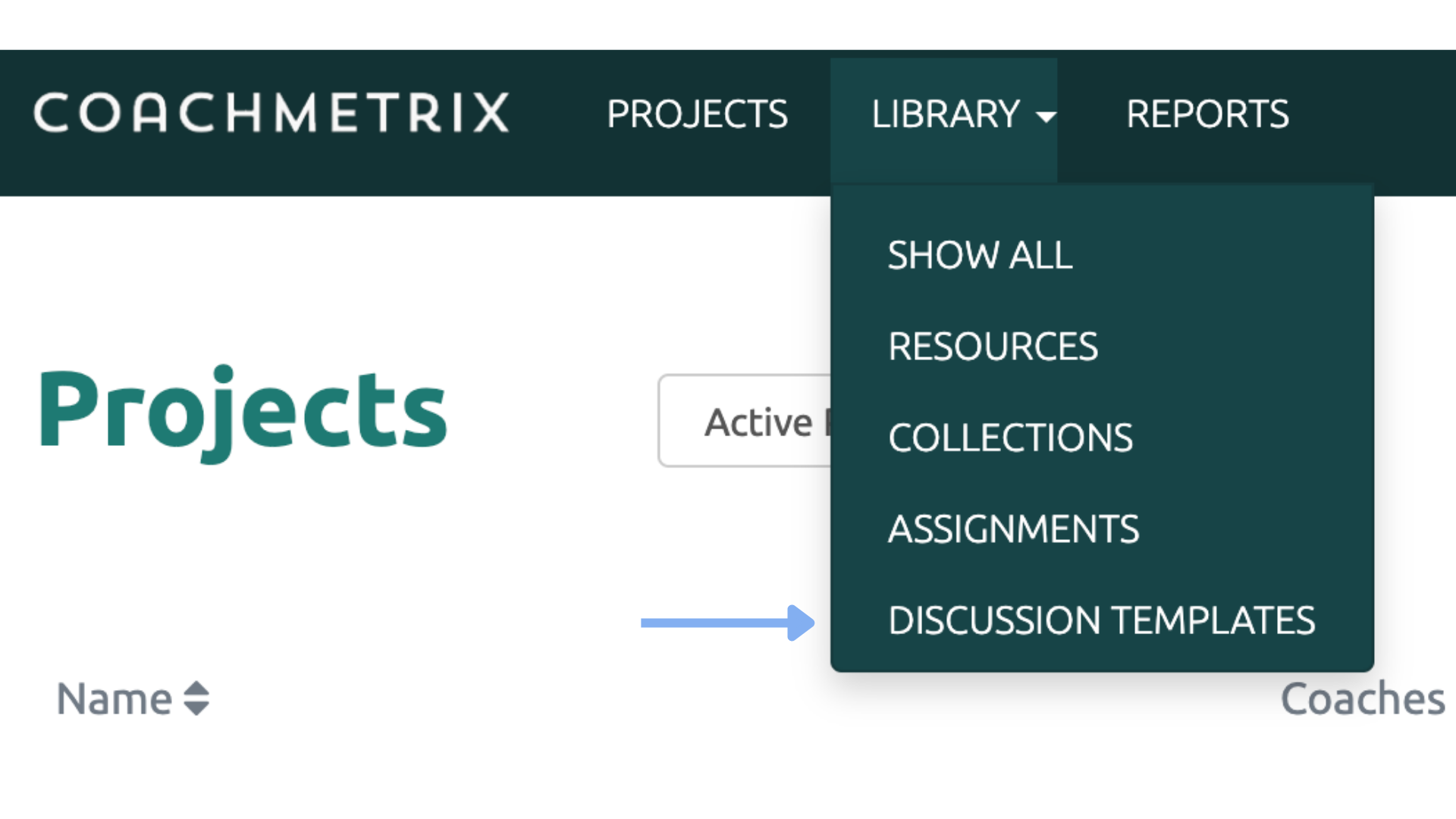
To create a new Discussion Template or access saved Templates, select Library from the the navigation menu.
Create a new discussions template
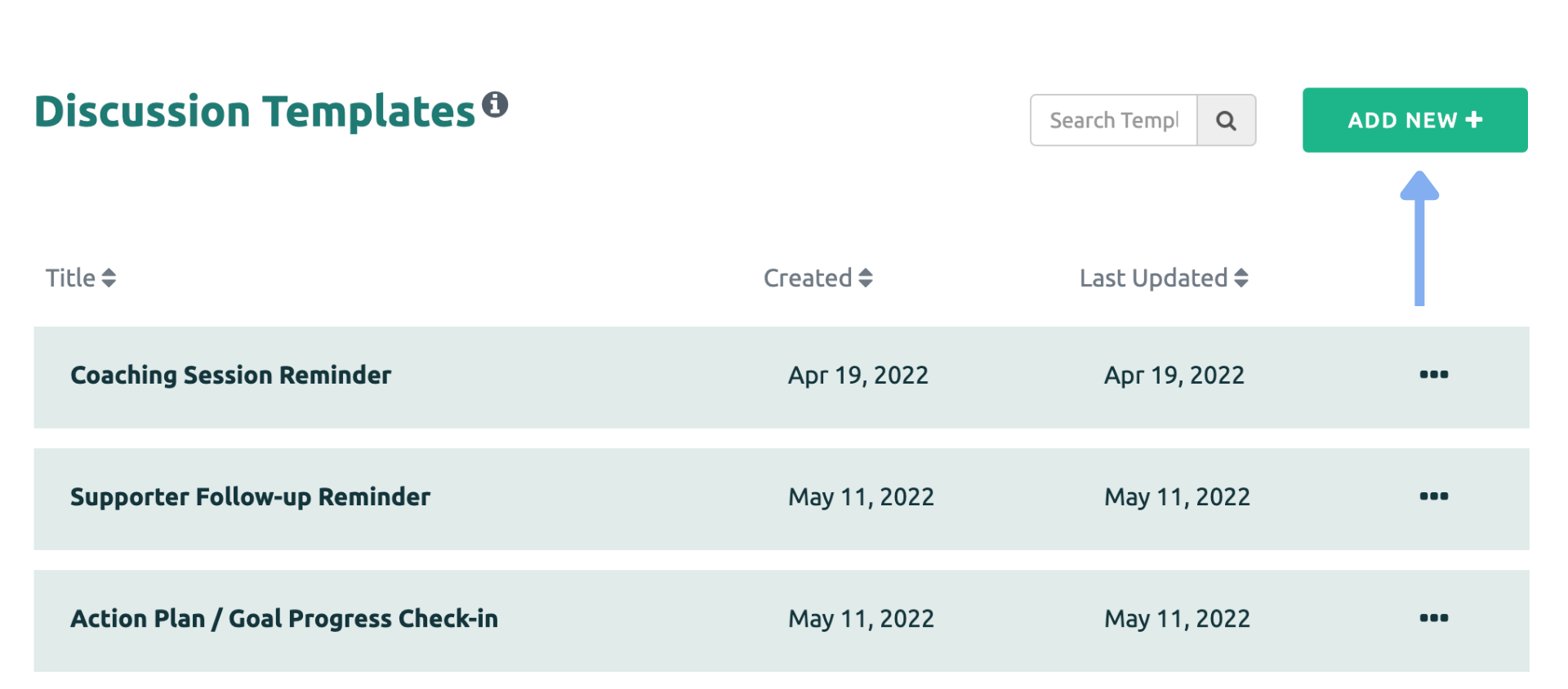
The Templates page will display all saved Templates. These Templates can be edited or deleted. To create a new Template, select the "Create Template" link on the right side of the page.
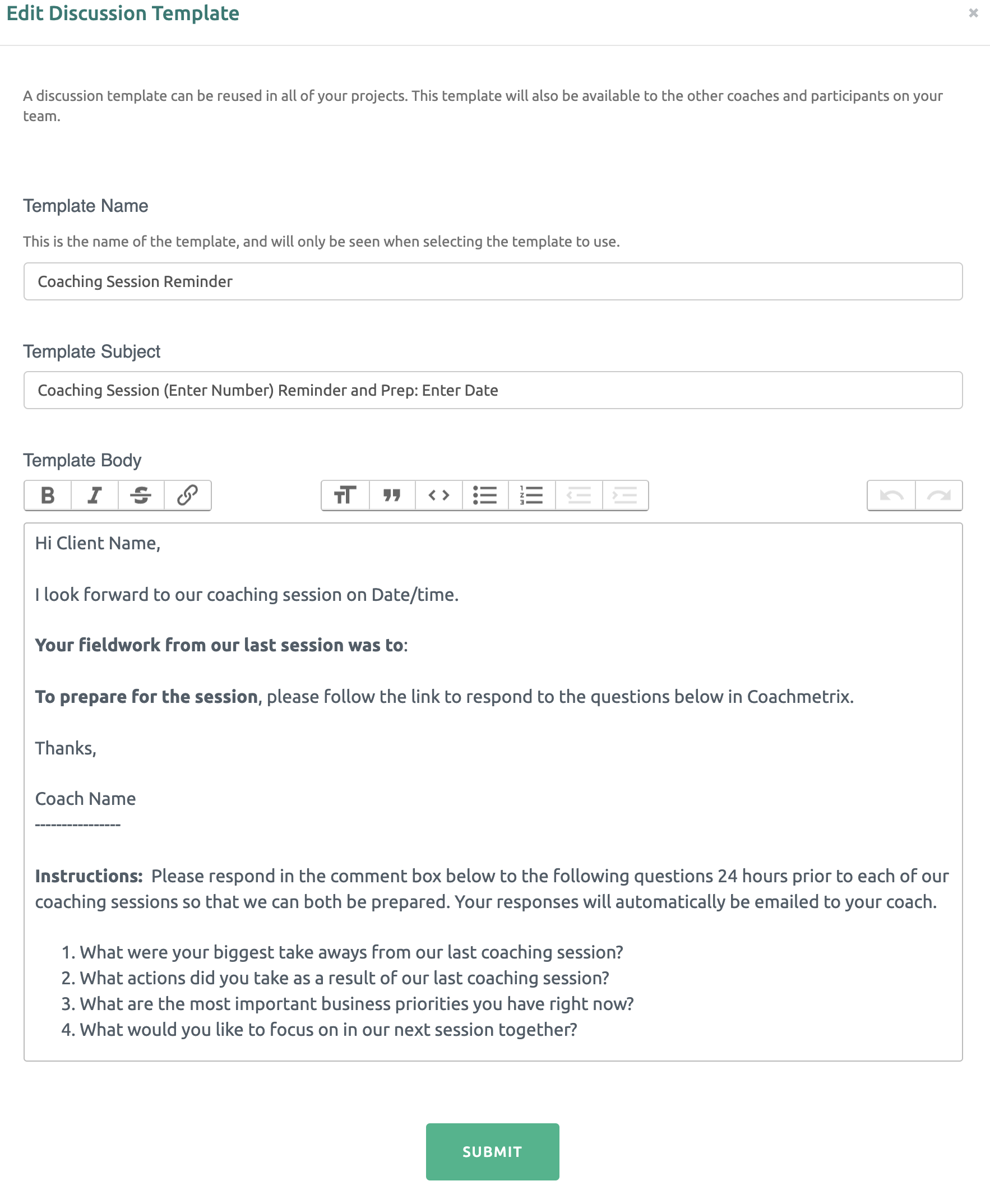
The pop-up window contains fields for Template Name (visible only to the Coach), Template Subject and Template Body. Once populated, select the "Submit" box at the bottom of the window and the new Template will be available for use in Discussions with Participants.
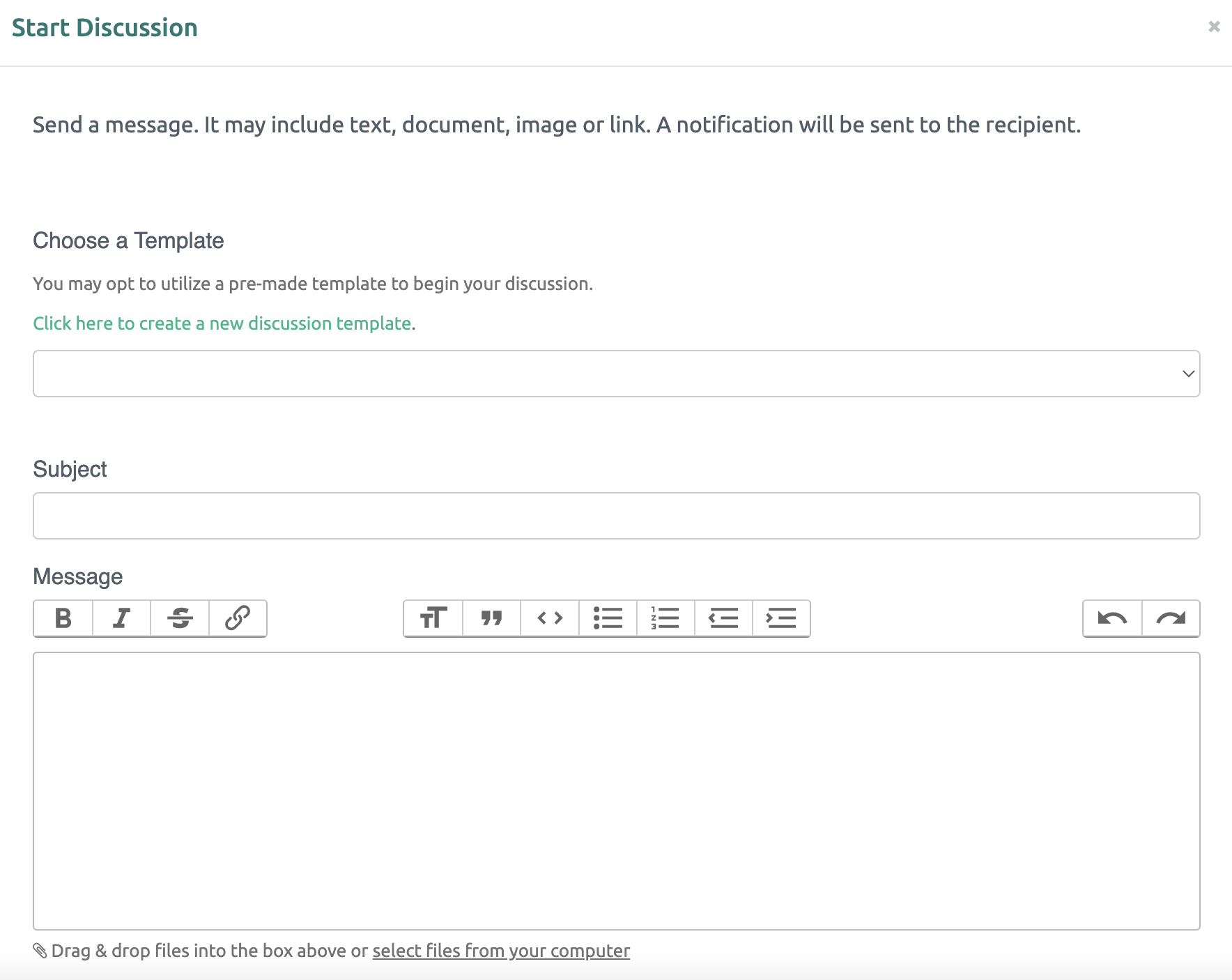
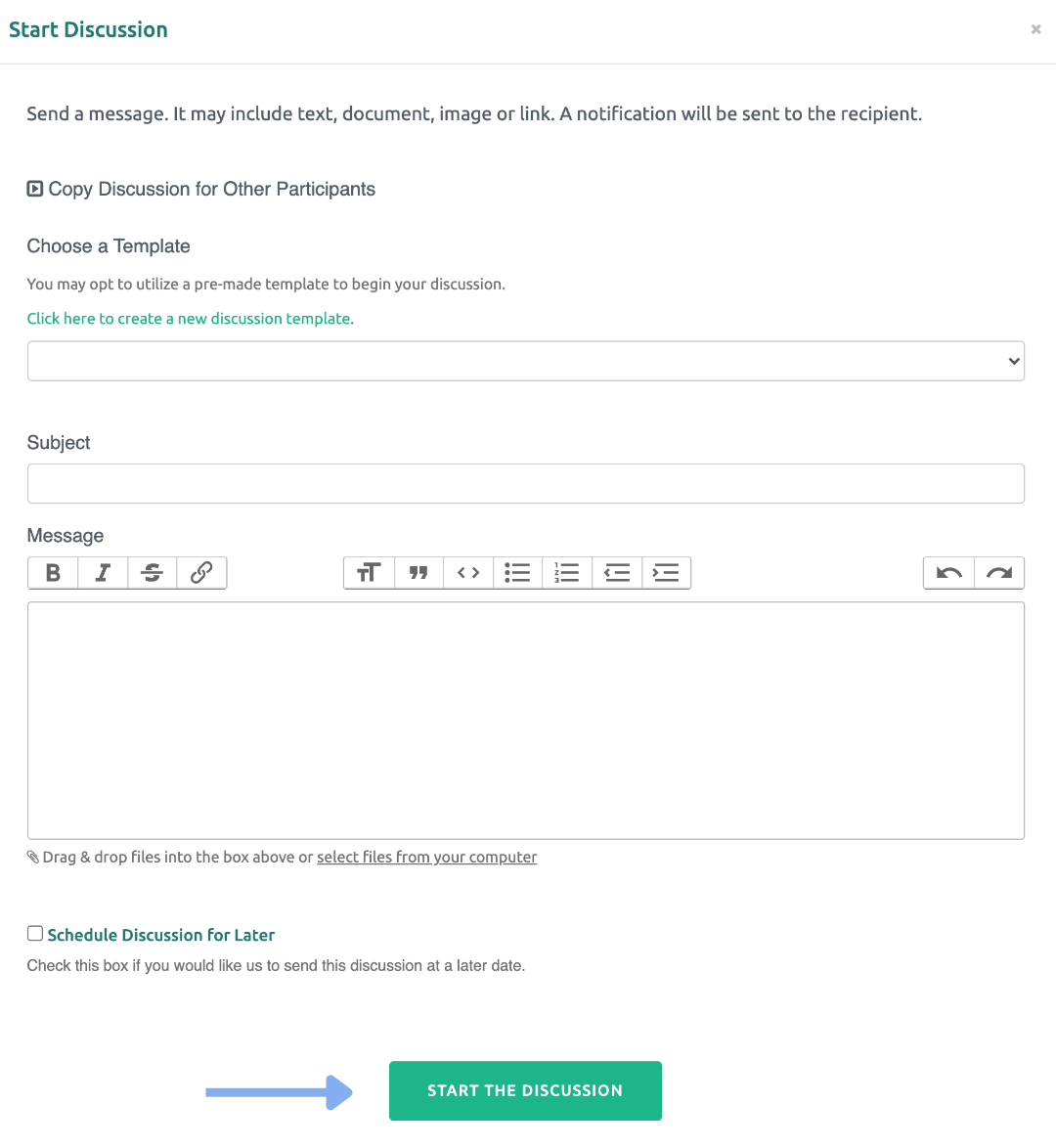
To utilize a Discussion Template, first select a Participant. Next select the “Add Discussion” box at the top of the page. The pop-up window will display a drop down list of available Templates. A new Template may also be created by click the green link.
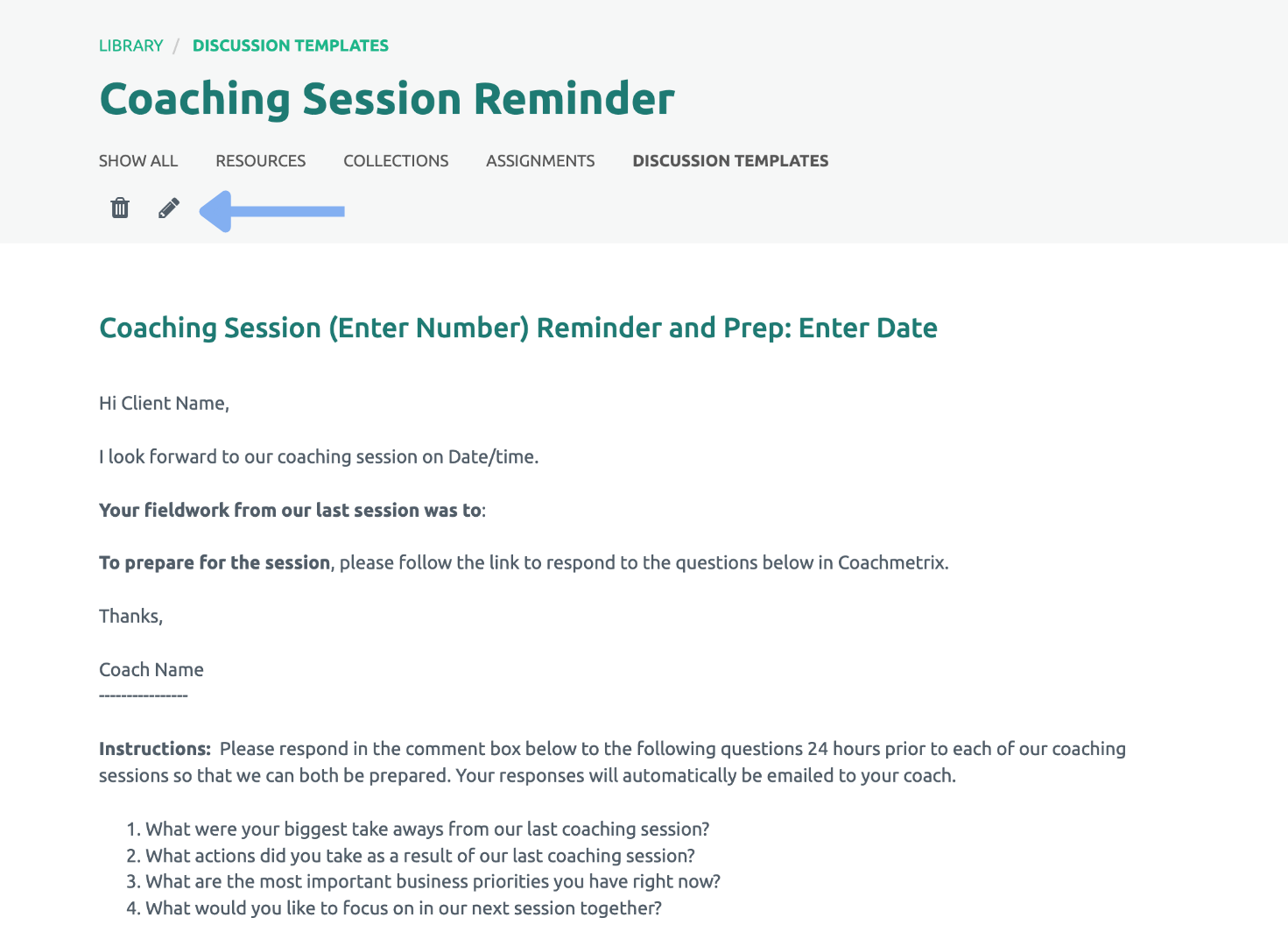
The Templates can be modified to customize the message for individual clients.
The Discussion can be sent immediately or scheduled for a later date. The “Schedule a Discussion for Later” feature creates an automated nurturing sequence throughout the coaching engagement. Simply check the box and a calendar will appear. Select a future date when the message will be delivered to the Participant. Finish by clicking the "Start the Discussion" box at the bottom of the page.