TL;DR
Let's Do It Together!
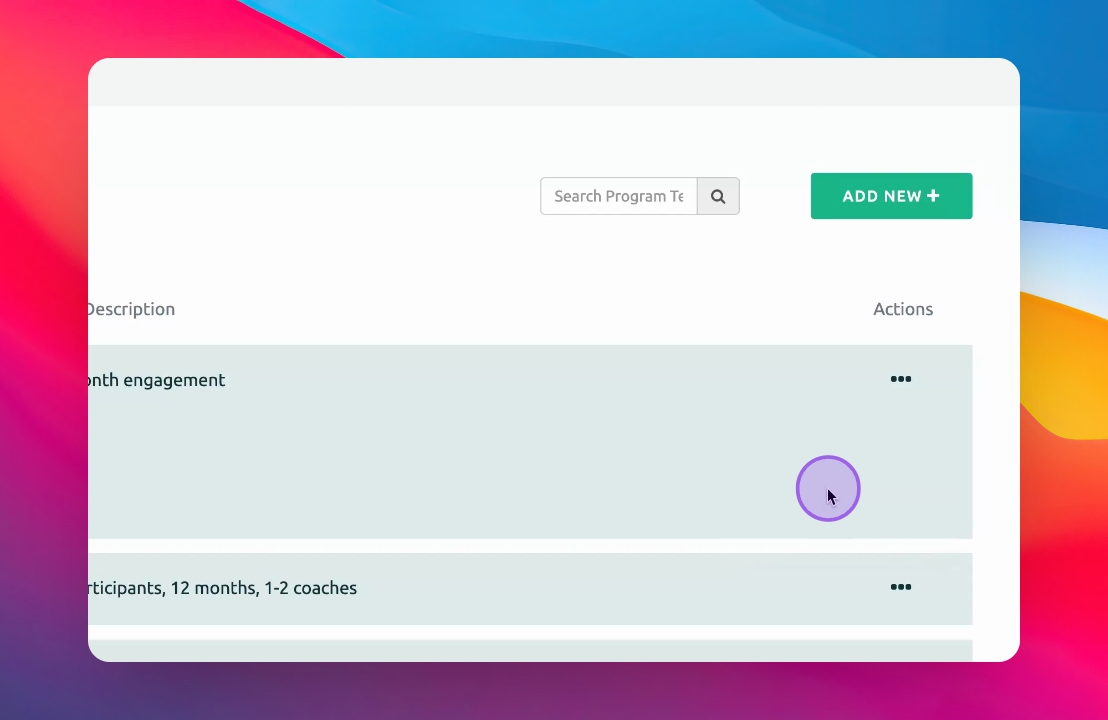
Step 1: Click on Three Dots
Click on the three dots on the right-hand side of your program.
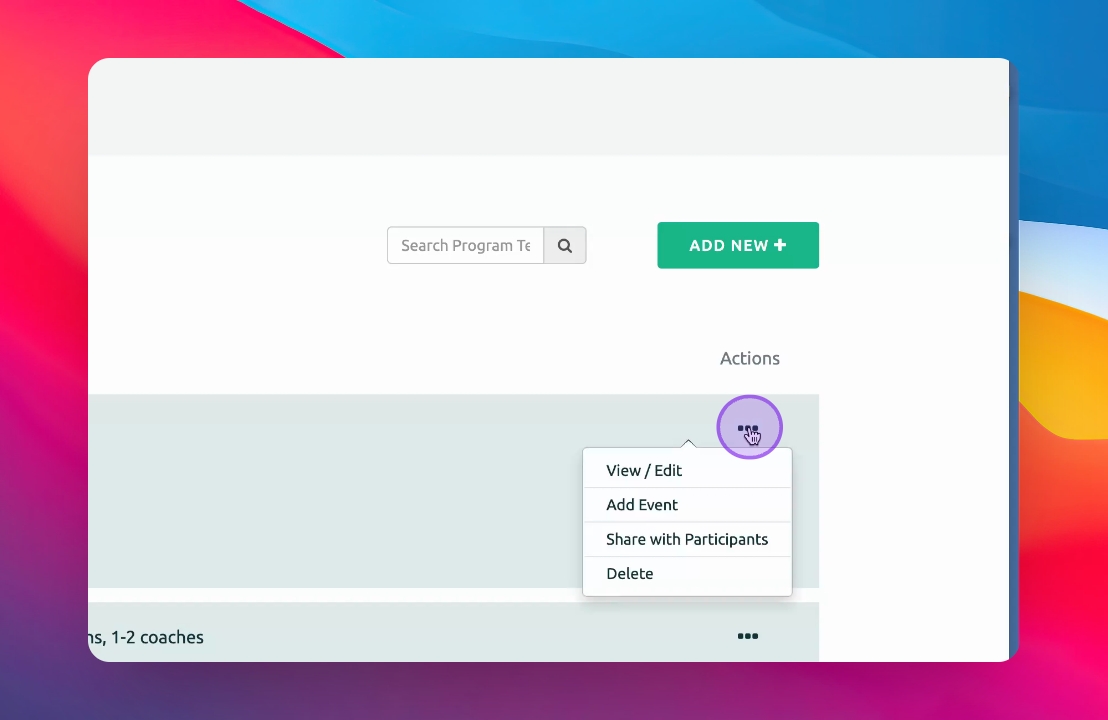
Step 2: Select Share Events
Click on Share Events to proceed.
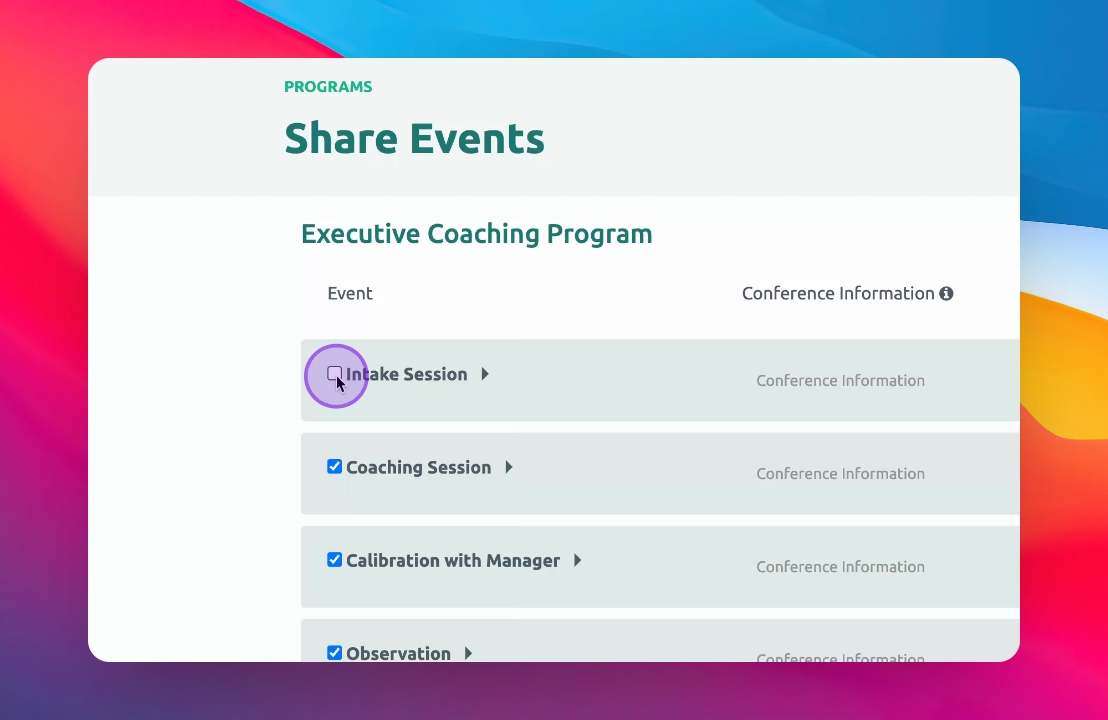
Step 3: Choose Events to Share
Decide whether to share all events or just a few.
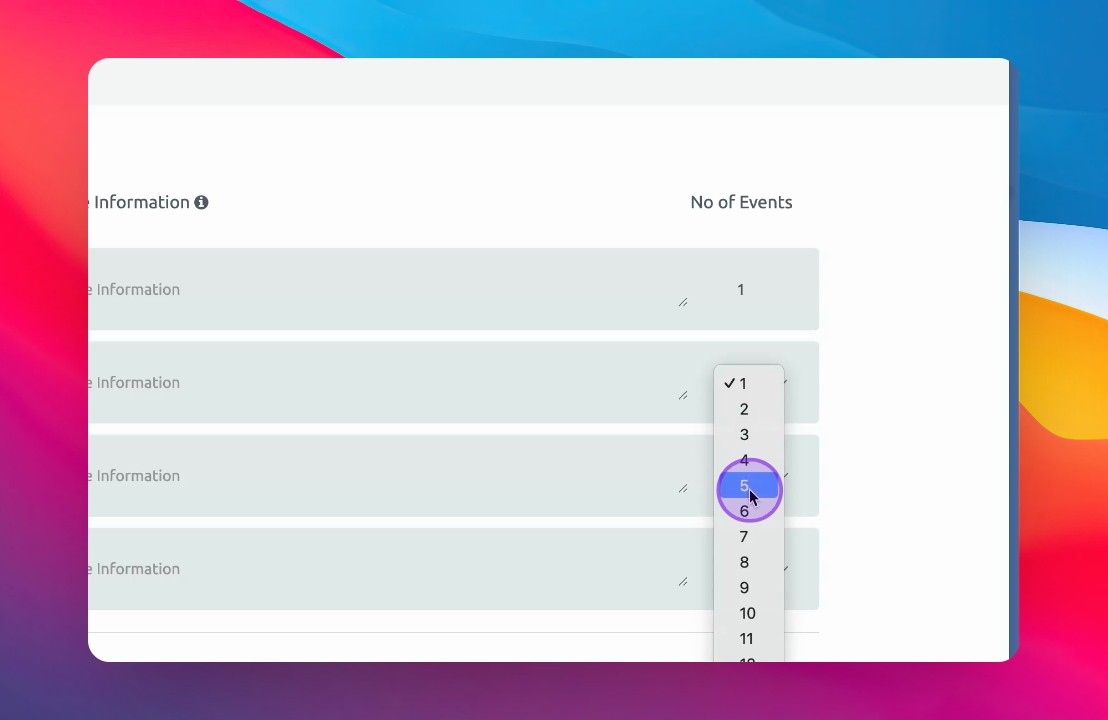
Step 4: Add Multiple Events If Needed
Add the desired number of Events. For example, you may want to add several coaching sessions to share.
The specified number of event tiles will appear.
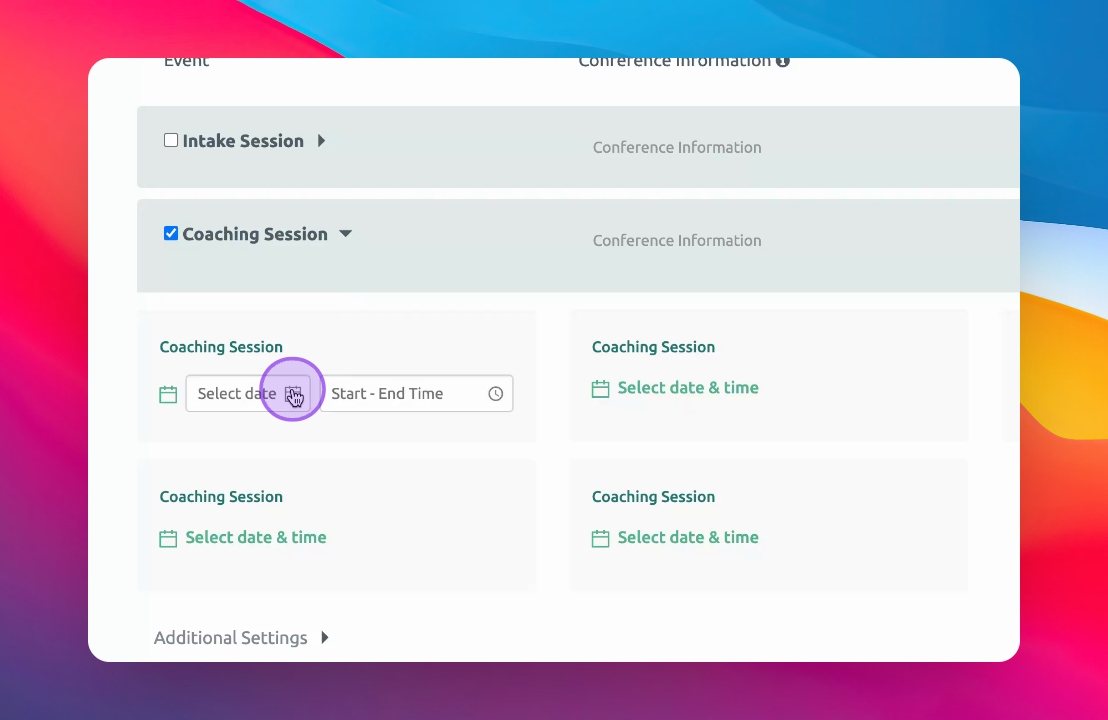
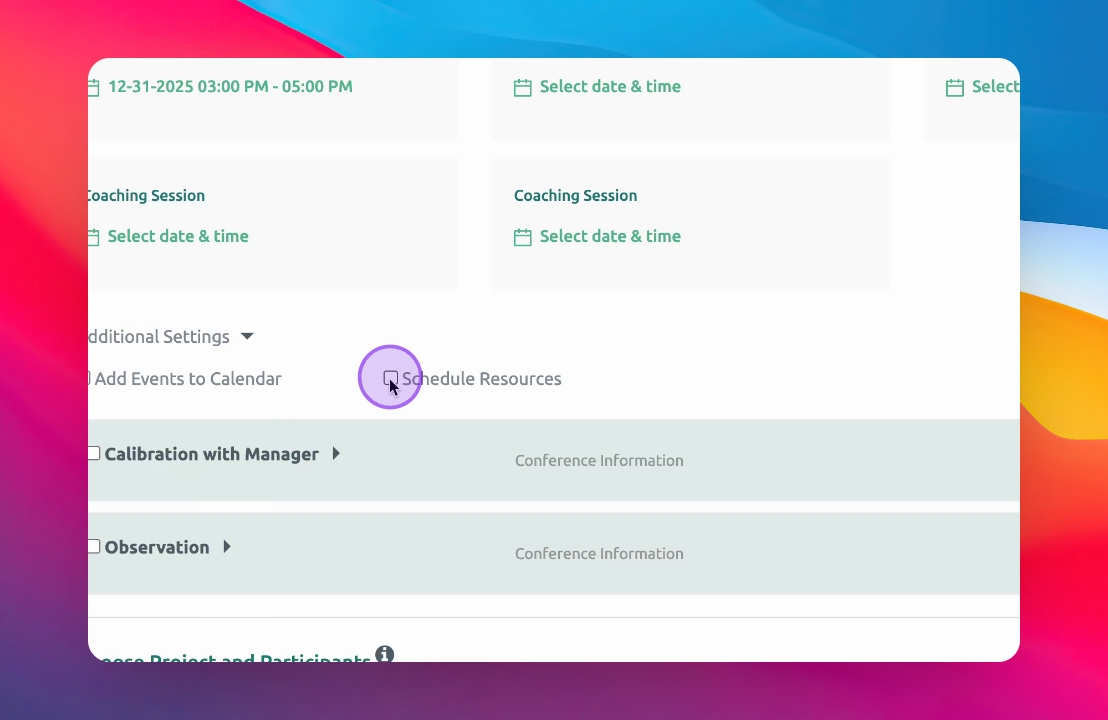
Step 5: Select Dates and Times
Select dates and times for the coaching sessions, if known. If you don't know the date and time, you can always add those later on the Participant's page.
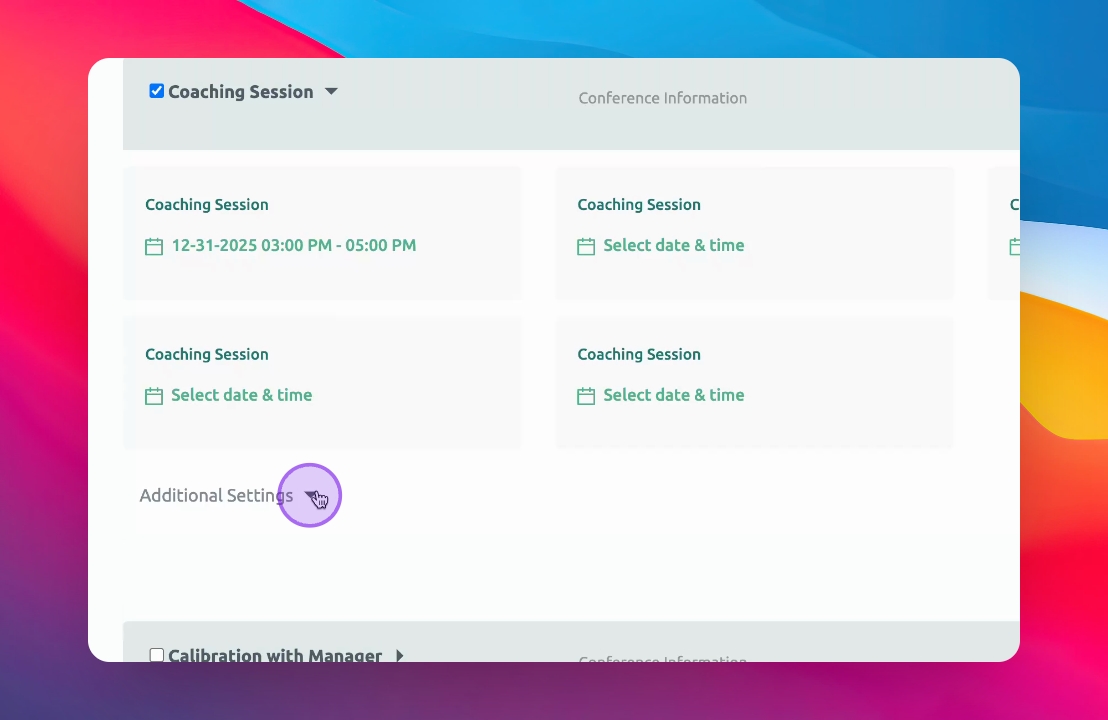
Step 6: Explore Additional Settings
Consider options like adding events to a calendar and using the automations feature.
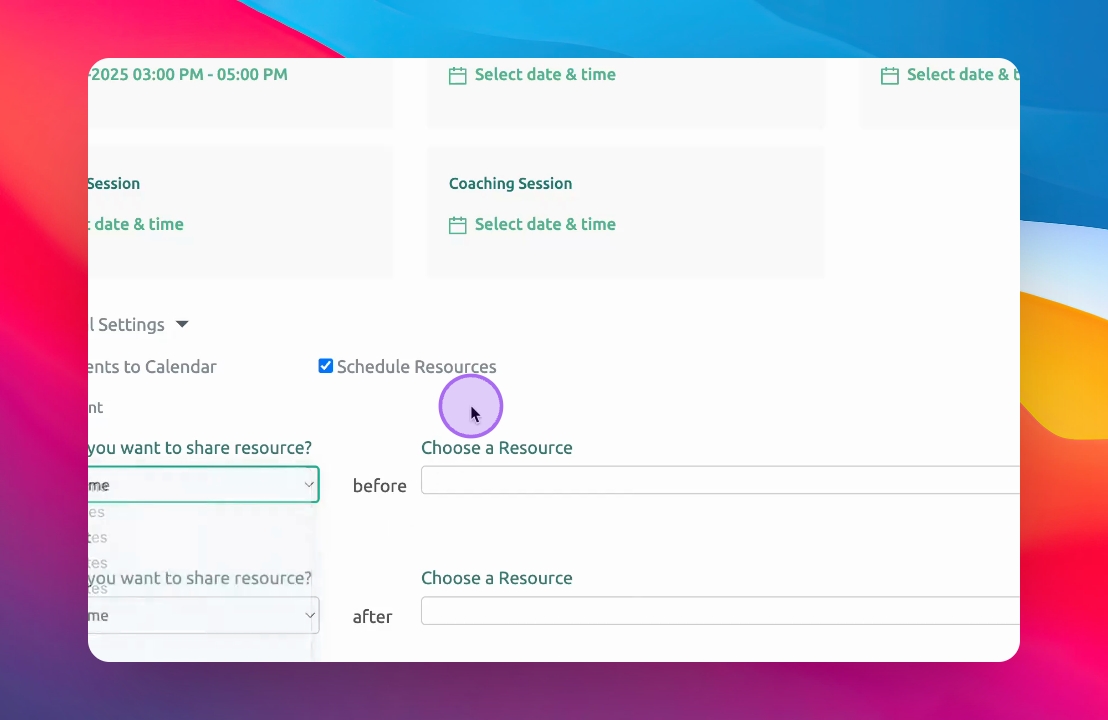
Step 7: Automate Pre and Post Event Messages, Resources, Collections and Assignments
Schedule discussions, resources, collections and assignments to happen before and/or after the Event. Automate your entire coaching process to save time.
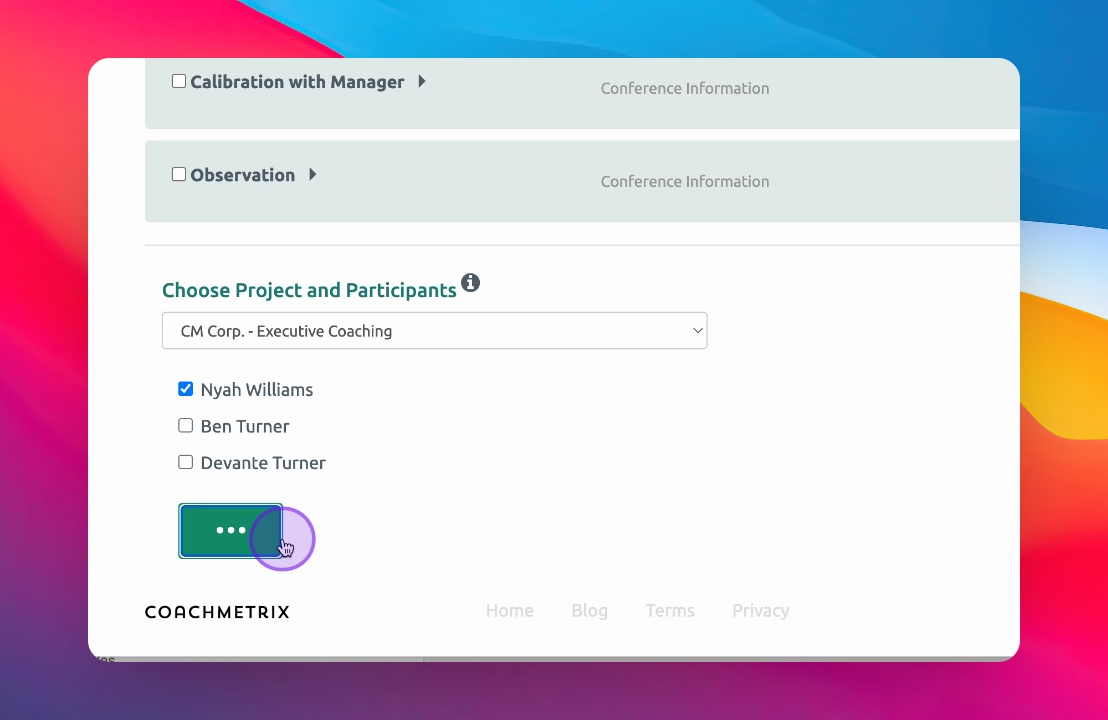
Step 8: Choose Project and Participant
Select the project and participant for the Events.
Step 9: Share Events
Click Share Events to complete the process.
The events will now appear on your participants' page.