

TL;DR
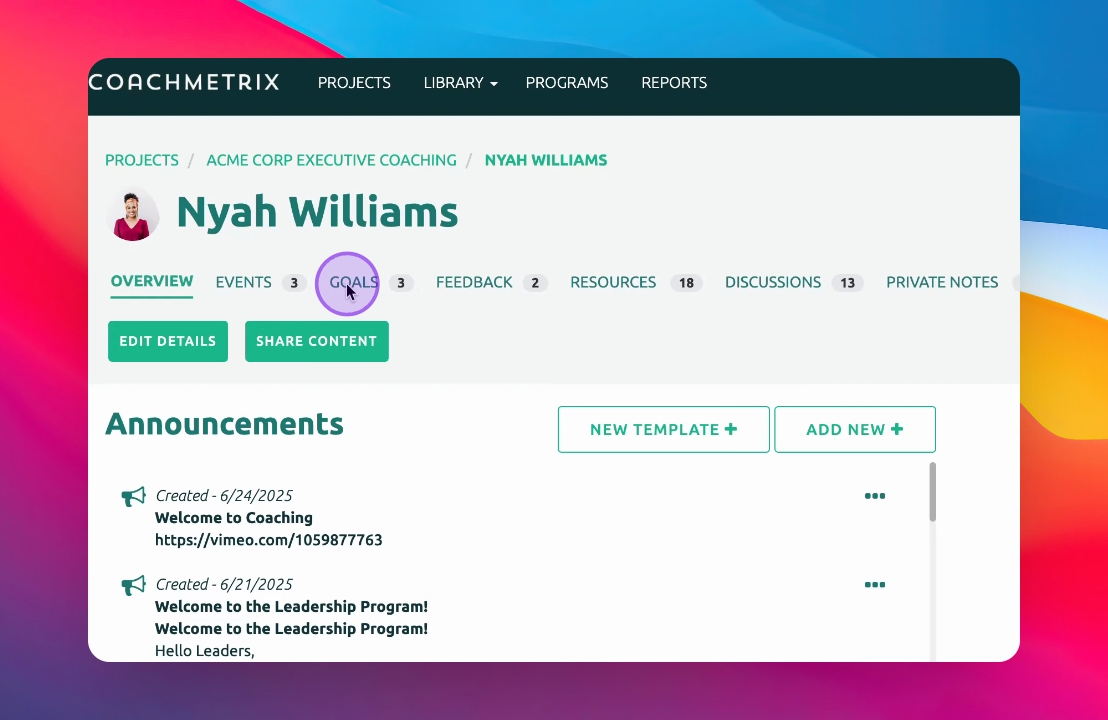
Click on Goals in the menu below the Participant's name
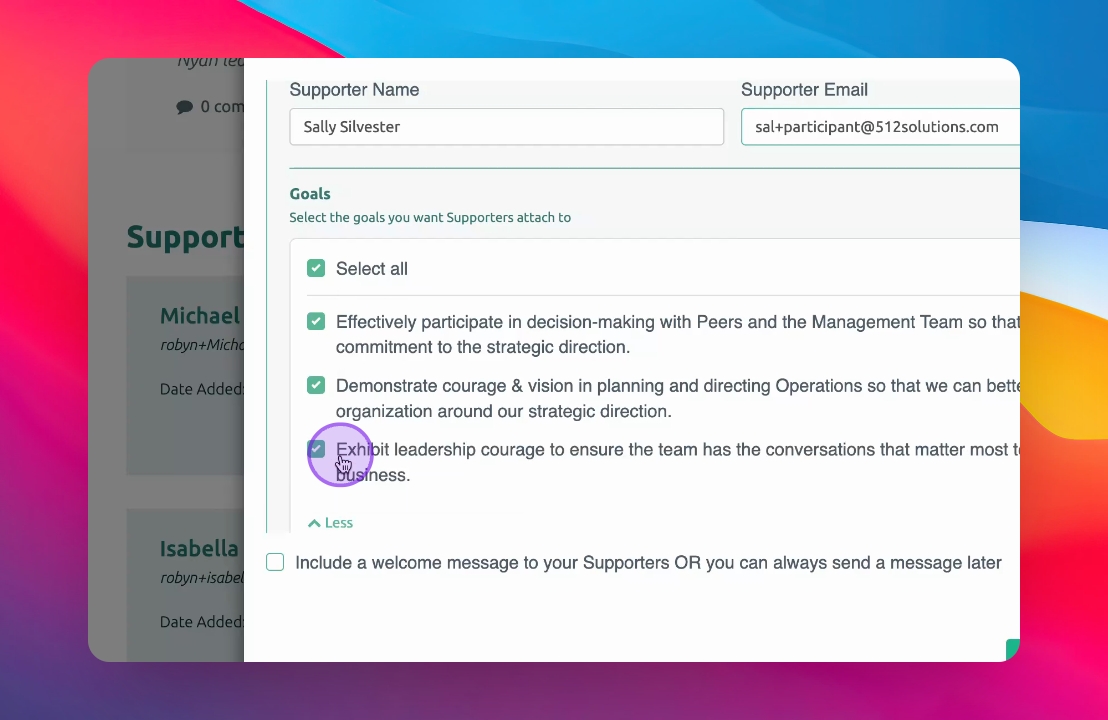
By default, the Supporter will be add to all of the Participant's goals. If any of the goals are not relevant for that Supporter, uncheck the goal and the Supporter will not receive a pulse feedback survey.
Click the Add New Row to add additional supporters.
Let's Do It Together!
Step 1: Access Goals
Click on Goals to open your goals page.
Step 2: Scroll to Bottom
Scroll down to the bottom of your goals page.
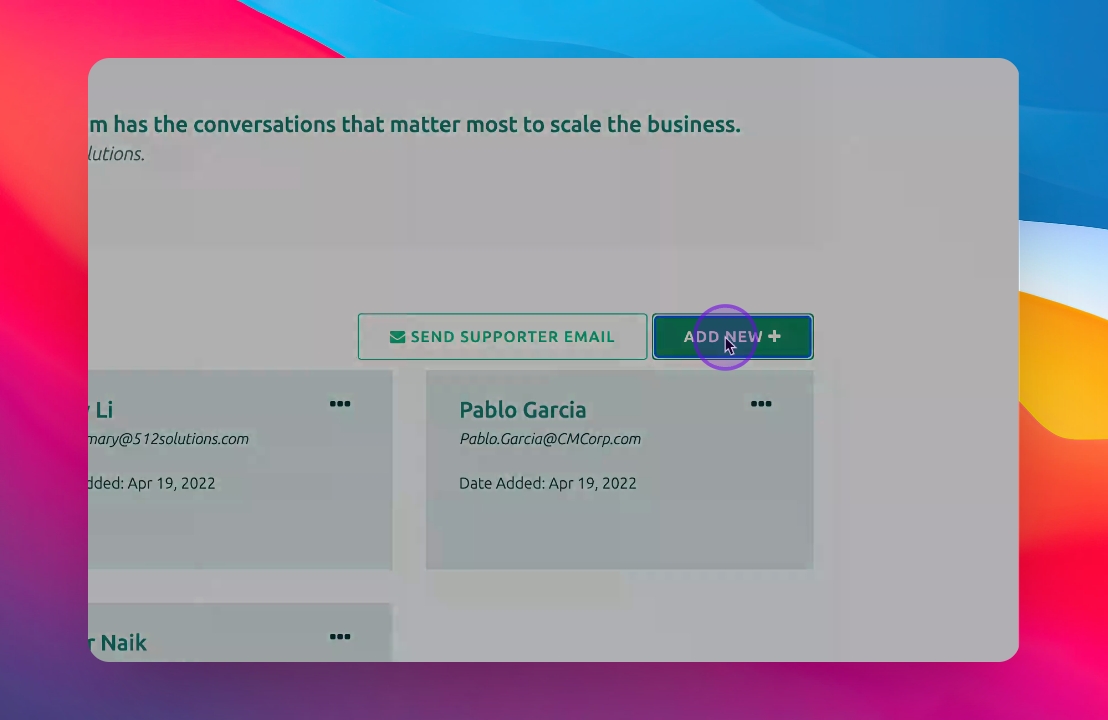
Step 3: Add New Supporter
Click on Add New plus.
Step 4: Enter Supporter's Name
Enter your supporter's name in the provided field.
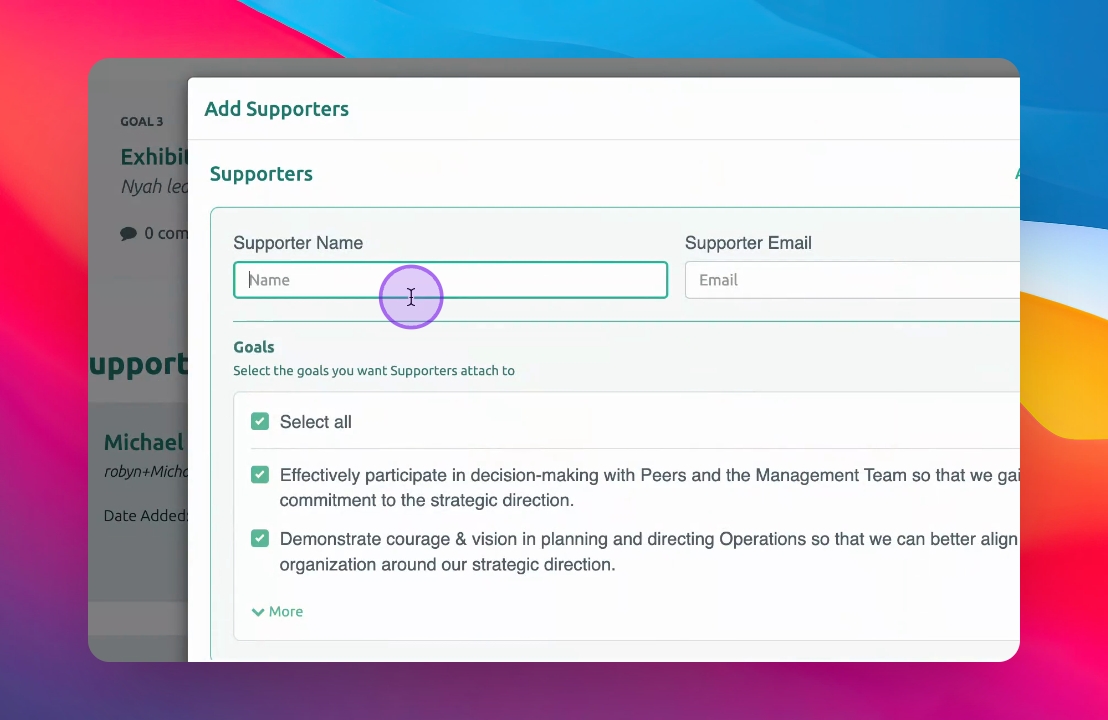
Step 5: Enter Supporter's Email
Enter your supporter's email address.
Step 6: Set Goal Permissions
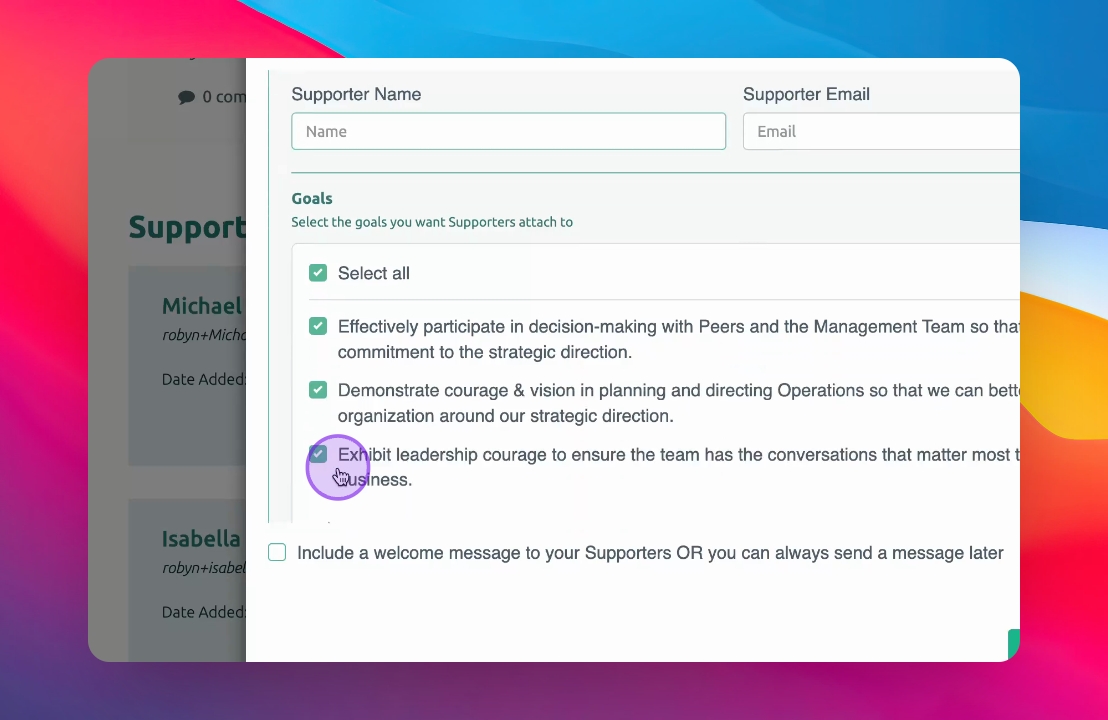
Your supporter can respond to all participant goals by default.
If any goals aren't relevant, uncheck their name from those goals.
Step 7: Add Another Supporter
When ready, click on Add New Row to add another supporter.
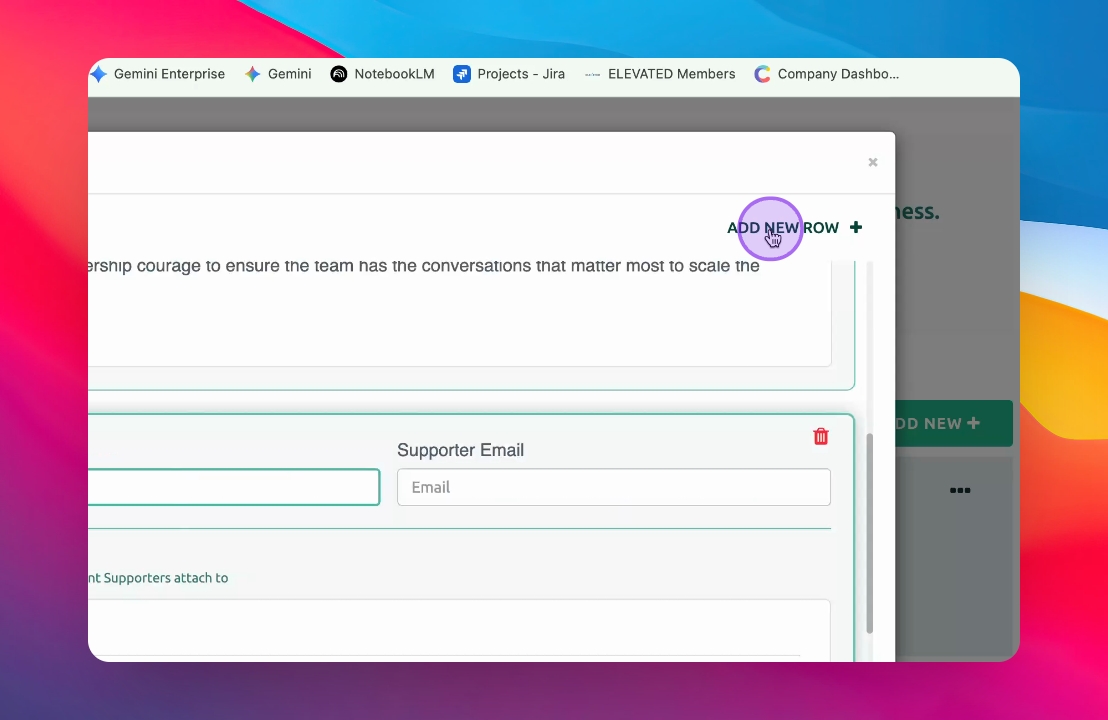
Step 8: Enter Next Supporter's Info
Add the next supporter's name and information.
Step 9: Send Welcome Message
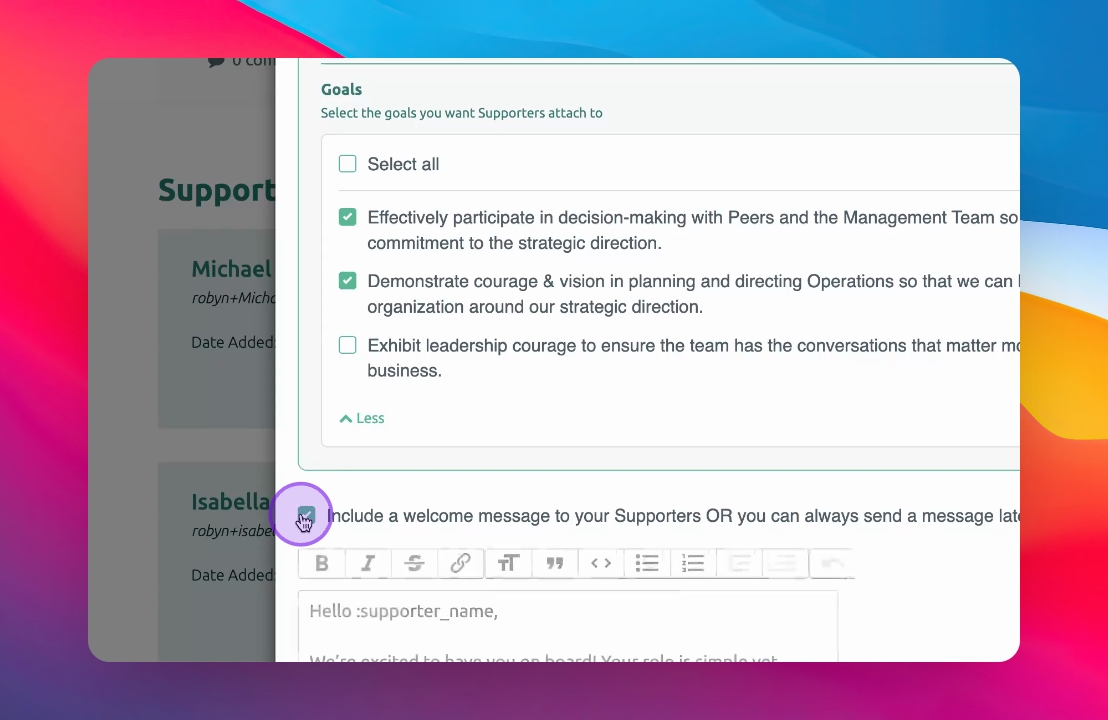
Check the option to include a welcome message. The supporter will also be able to view a short video about their role as part of the message that is sent to them. NOTE: We highly recommend that the participant enrolls their supporter verbally first before adding them into Coachmetrix.
Step 10: Edit Welcome Message
Customize the welcome message as desired.
Step 11: Add Supporters
Click on Add Supporters to finalize the process.
Your supporters will be added to the participant's account.