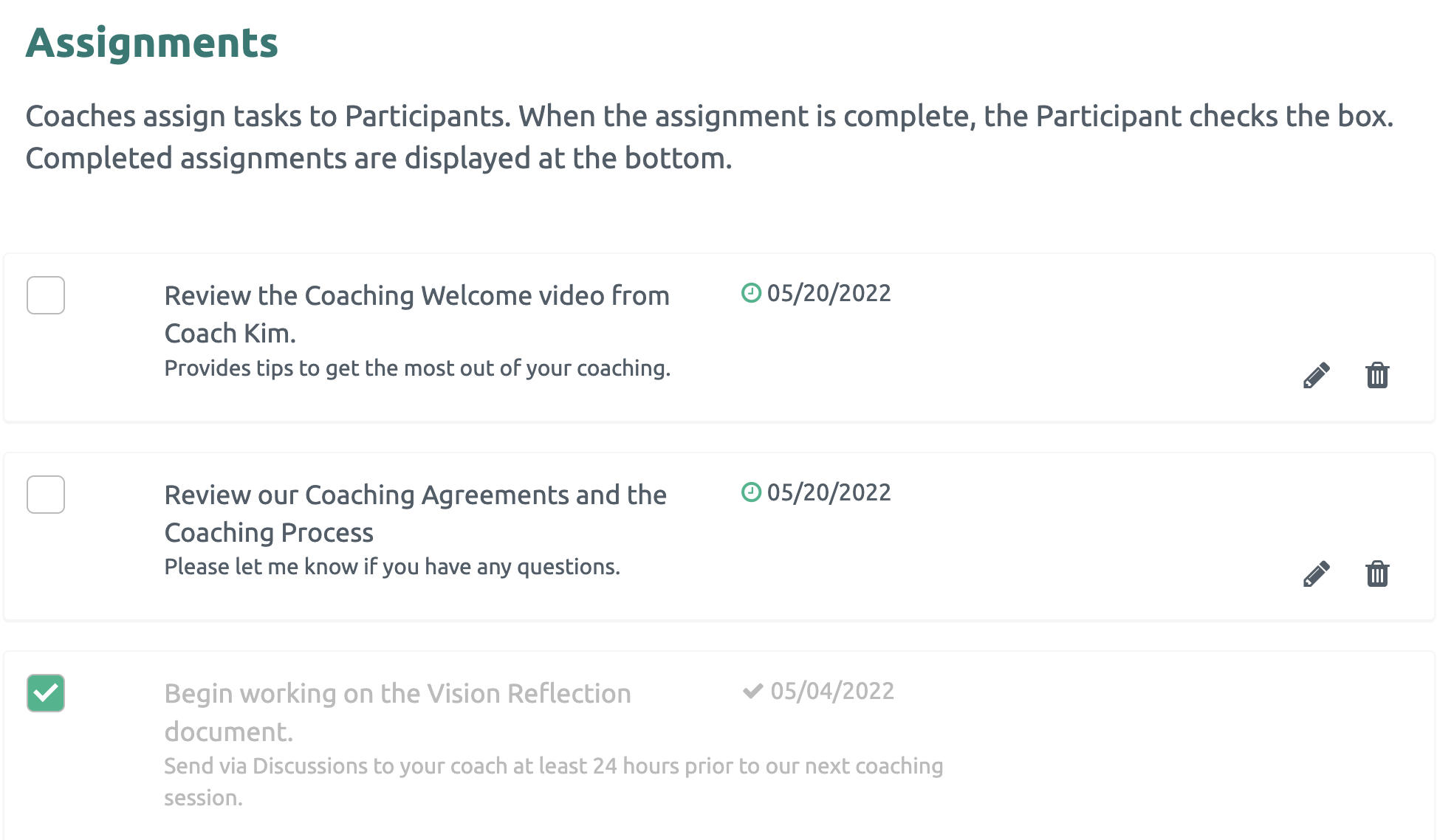
The Assignments function is a great way for Coaches to assign and manage tasks (To Do's) they have shared with their Participants. Coaches can create assignments and share selected tasks with individual Participants or an entire Project. The assignments can be customized to meet the needs of each Participant.
A Coach can easily view status on a Participants page with outstanding tasks displayed with due dates and completed task grayed out.
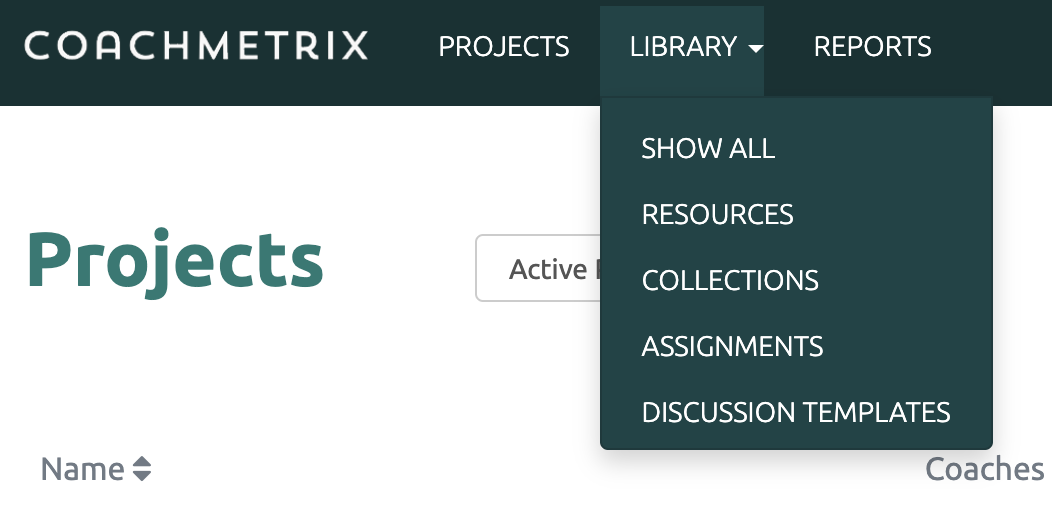
Assignments can be found by clicking the Library option on the black bar at the top of the page and selecting Assignments from the drop down menu.
Creating Assignments
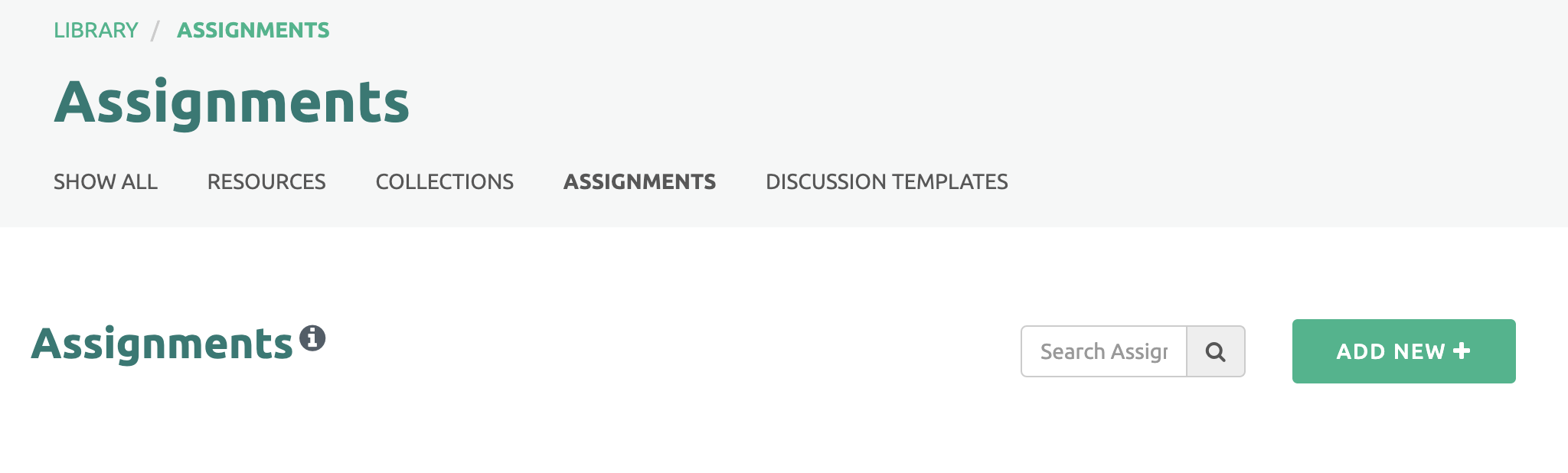
To create an Assignment, click on the “Add New+” button on the right side of the page.
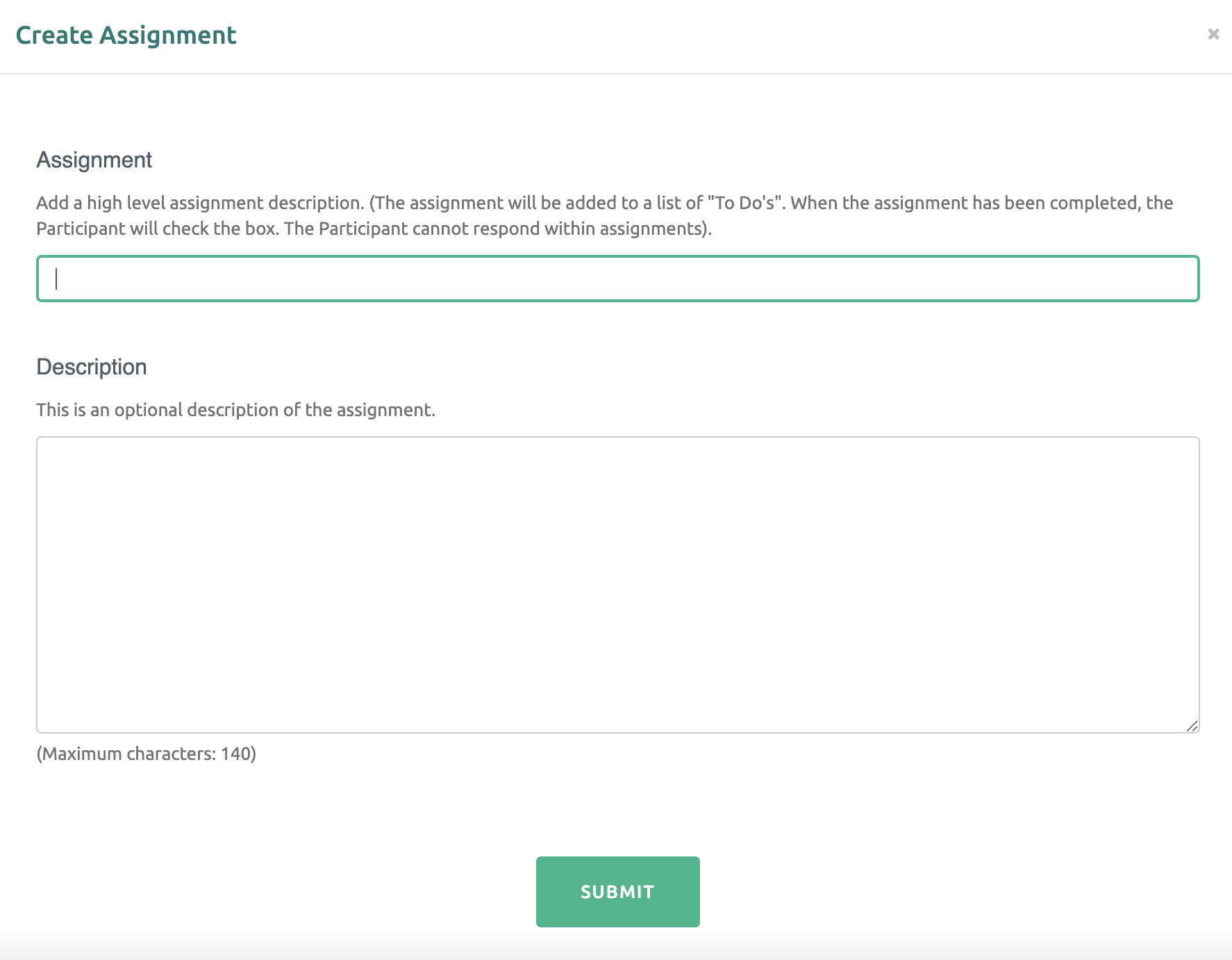
First add the Assignment in the top text box. A description is optional. To save, click the "Submit" green button at the bottom.
The Assignments will be displayed in a list with a created date and last updated.
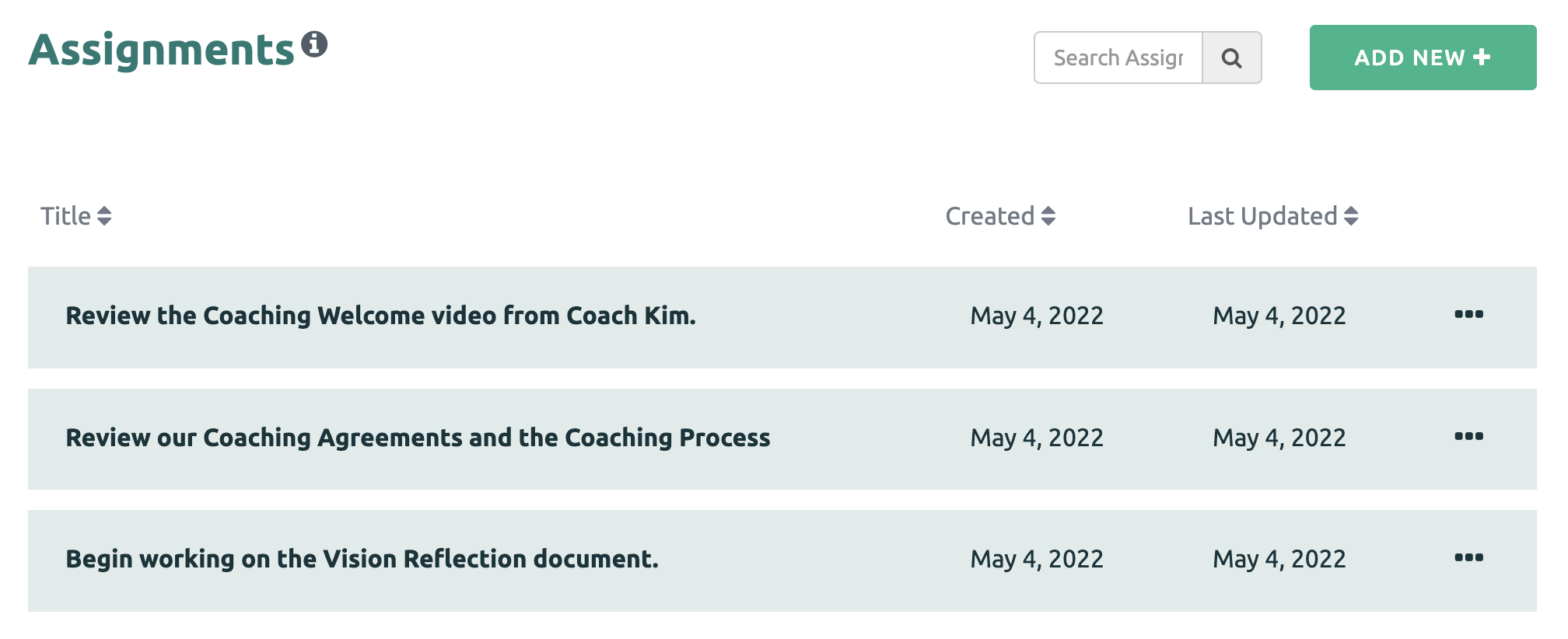
Click here to learn how to Edit or Delete Assignments.
Sharing an Assignment with a Participant
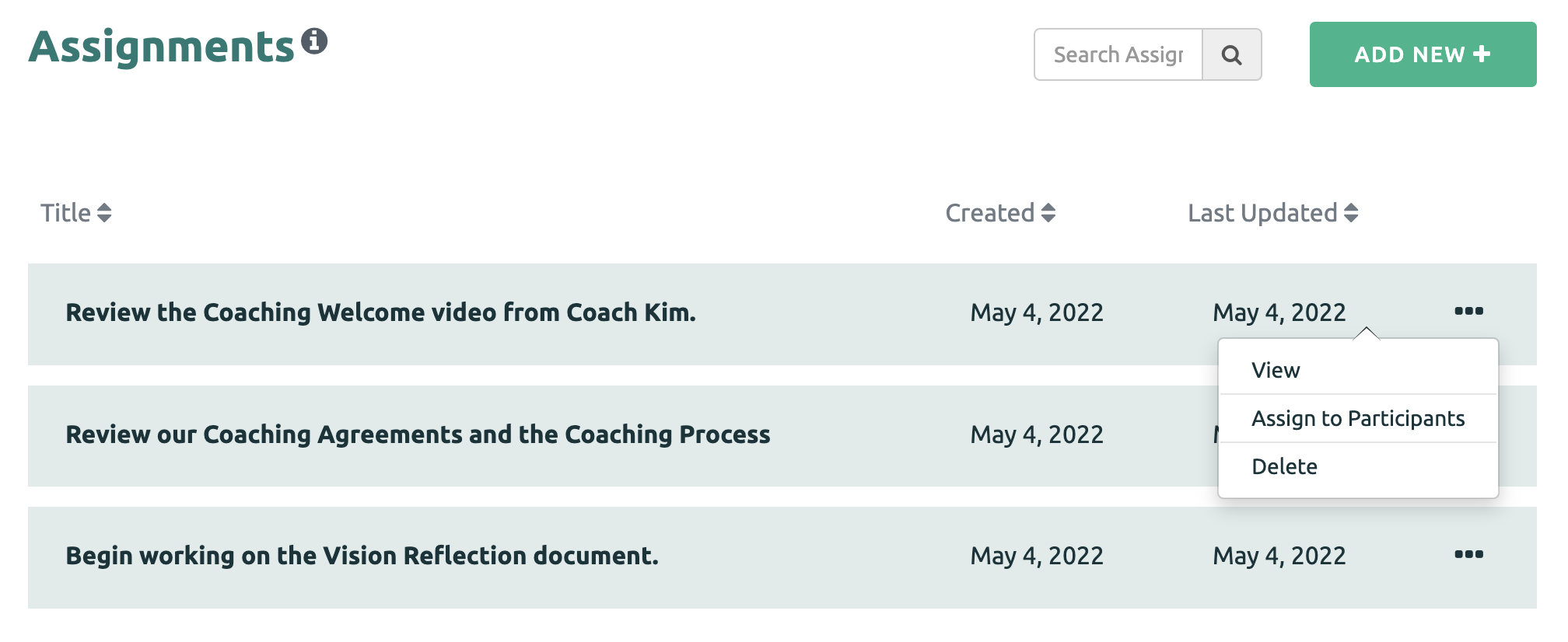
To share an Assignment with a Participant, click the three dots next to the Assignment, and then select the Assign to Participants option.
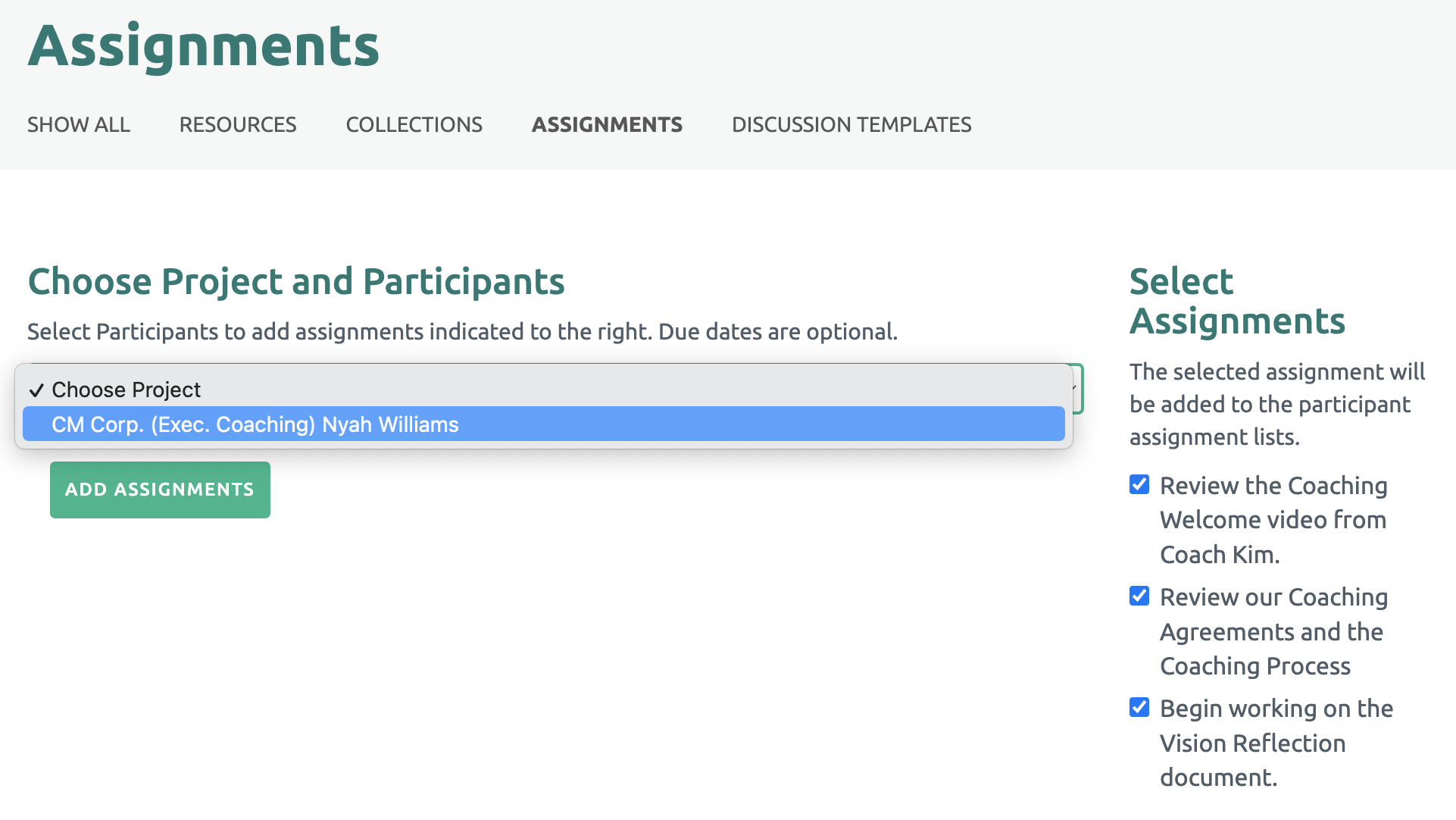
Next, Check the box next to the Assignment(s) listed on the right side and select the Project from the drop down menu. Then click the "Add Assignments" green button.
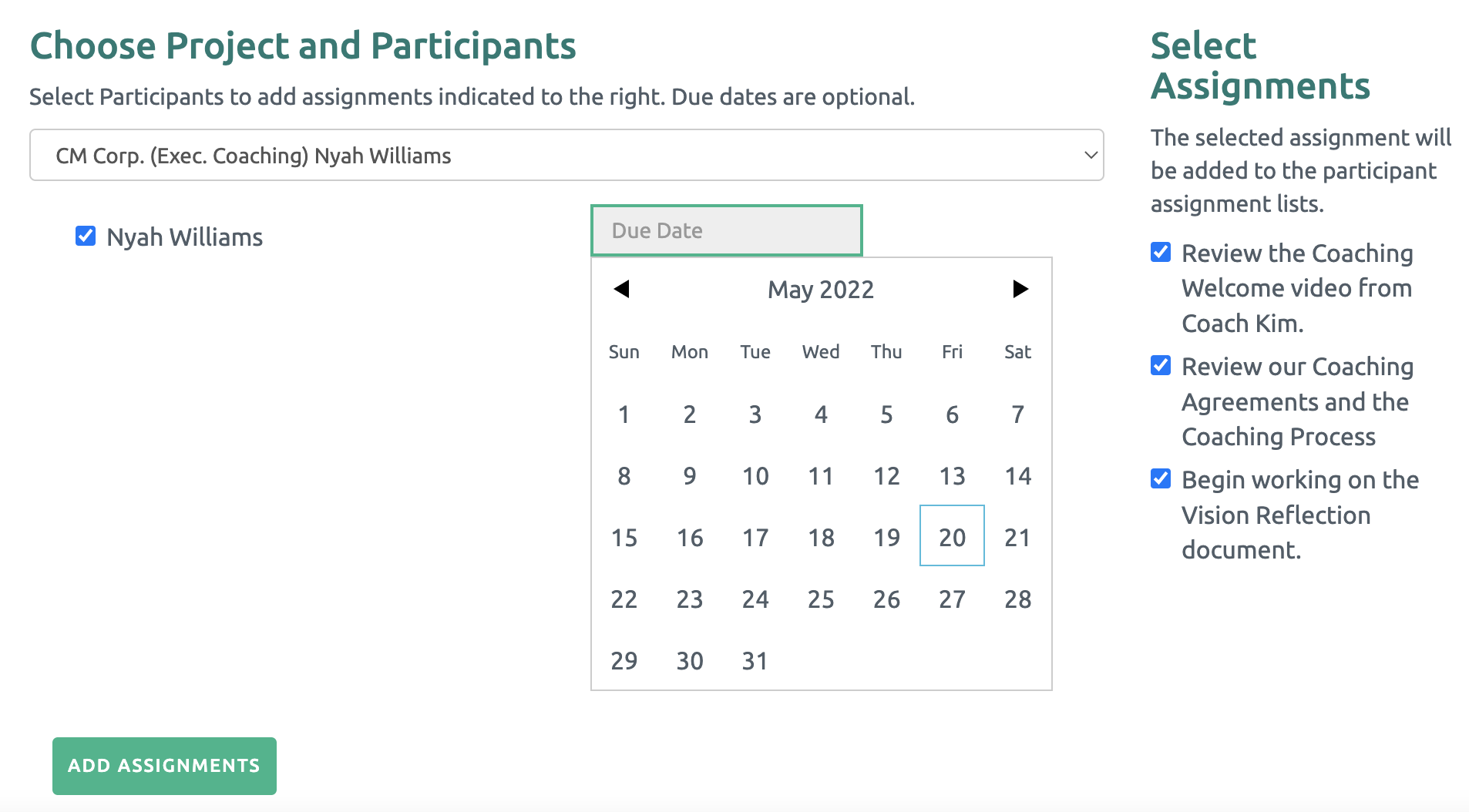
Finally, check the box by the Participant's name. You may select a due date (This is not required at this time. A due date can be added later.) Then click the "Add Assignments" green button.
An email is sent to the Participants informing them there are Assignments posted in their portal.
Viewing the Shared Assignments
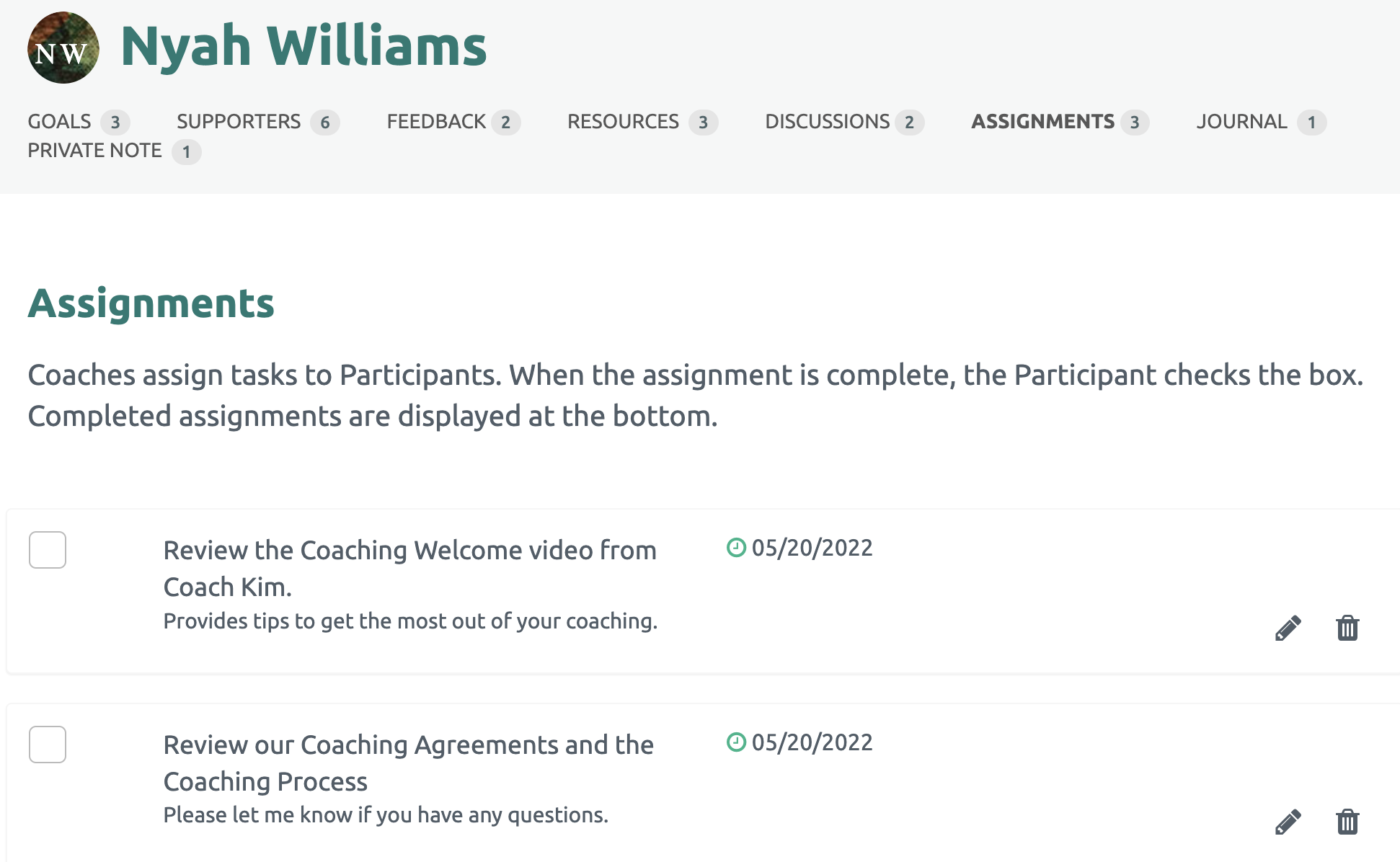
The Coach can view the Assignments that have been shared by clicking the Assignments link under the Participant's name. The number of shared Assignments is also displayed.
All of the shared Assignments are listed.
Updating a Shared Assignment
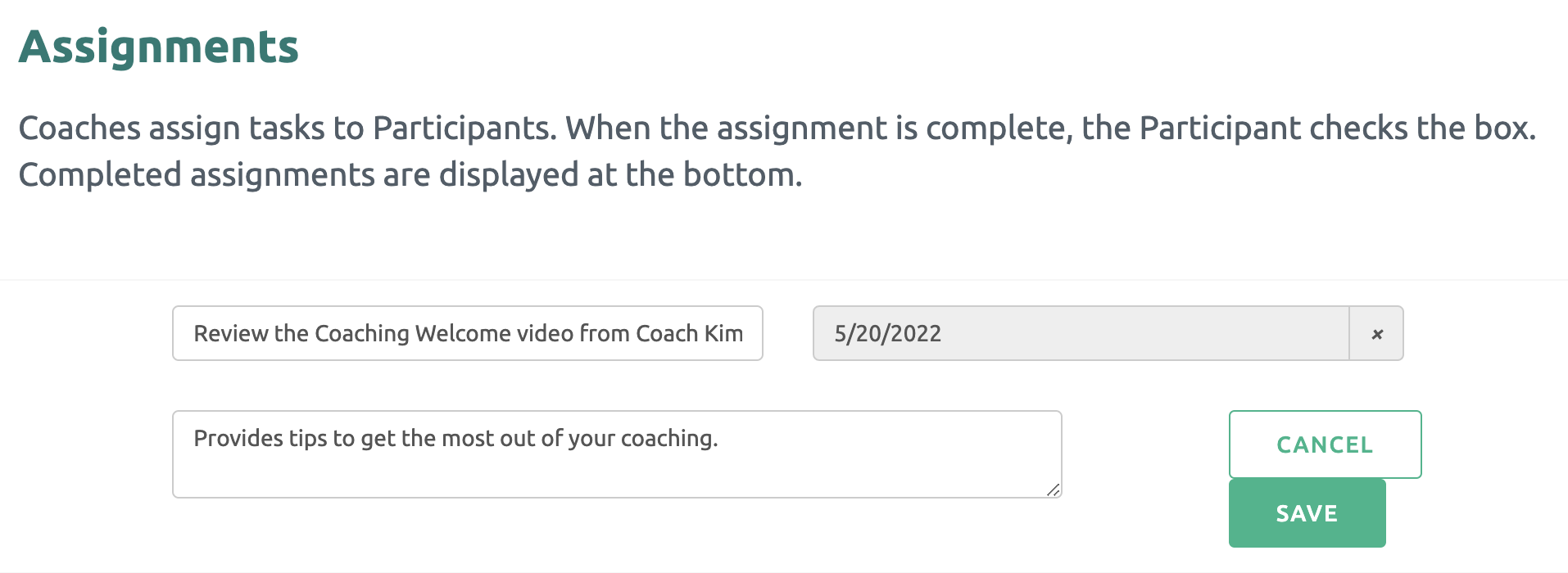
The Coach may update or delete the shared Assignment at any time. Click the pencil or trash can icon on the right side. When finished, click the "Save" green button.
NOTE: The pencil (edit) and trash can (delete) options are only available to the Coach.
Completed Assignments
Once the Participant has completed an Assignment, the Participant or Coach checks the box to the left of the Assignment. The Assignment will stay displayed but fade and the due date will be updated to reflect the completion date.