

Pulse Feedback is the mechanism through which Coachmetrix measures both a Participant's “self” perspective and a “Supporters” perspective of the Participant's behavior change.
The Immediate / On Demand Pulse Feedback process allows the Coach to send a single request to specific Supporter(s) to get feedback immediately.
Establishing Pulse Feedback Settings
There are two levels of settings for Pulse Feedback:
Project level (applicable to all of the Participants on the Project)
Participant level (specific to each individual Participant).
Project Level Settings
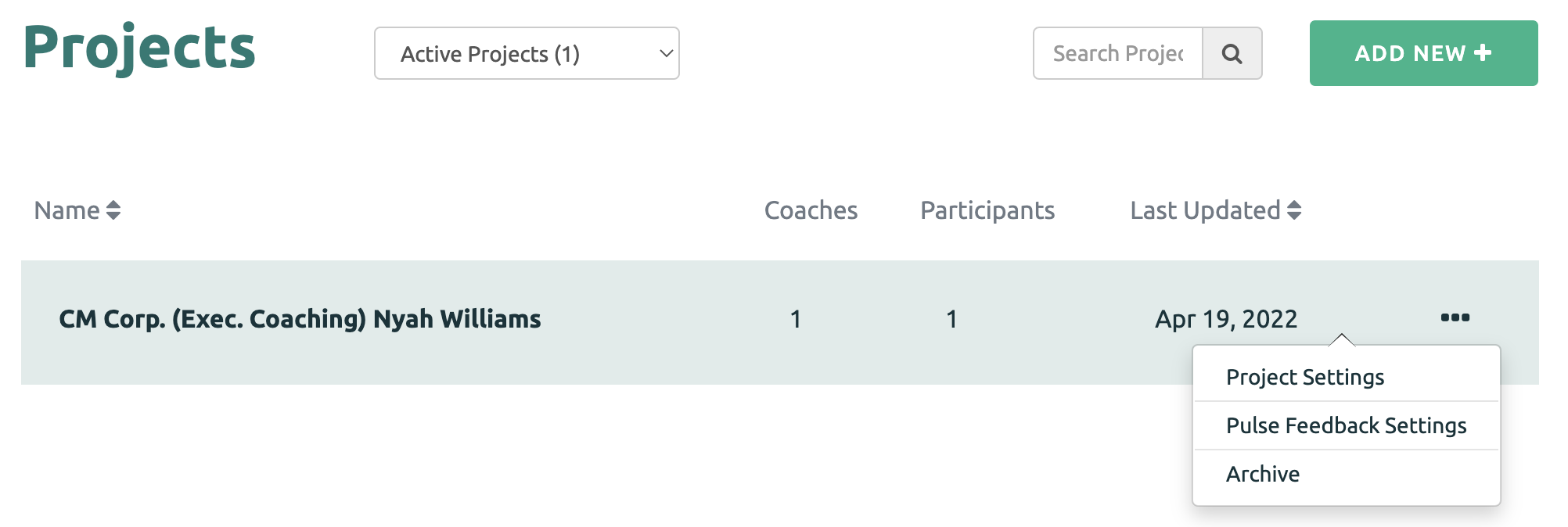
Project Level Settings are found by clicking the three dots next to the Project name. Then select the Pulse Feedback Setting option.
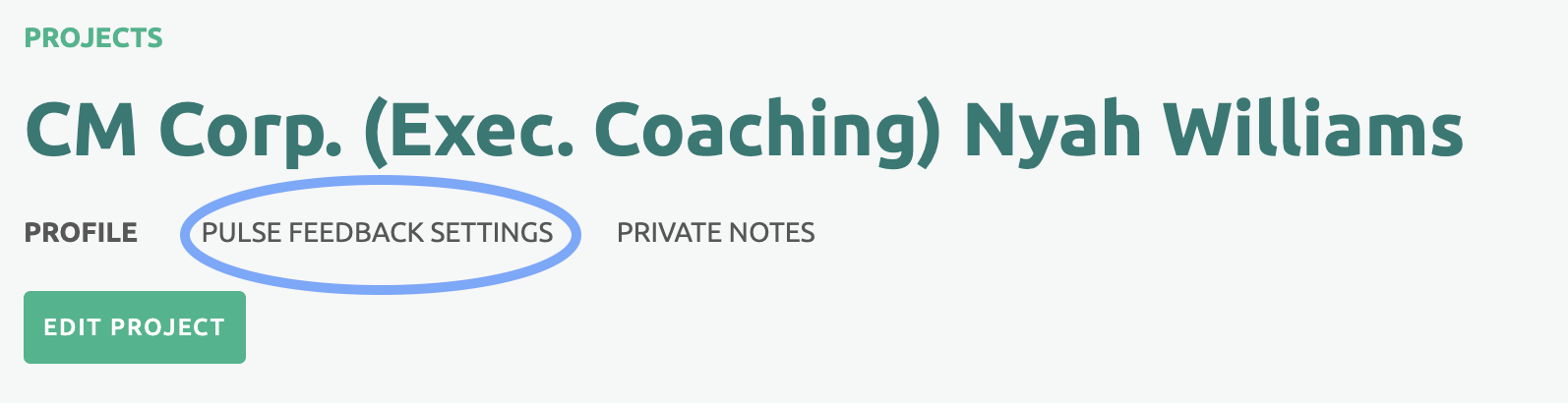
You can also find the Pulse Feedback Setting on the Project page under the Project name.
NOTE: These settings are applicable to all of the Participants on the Project.
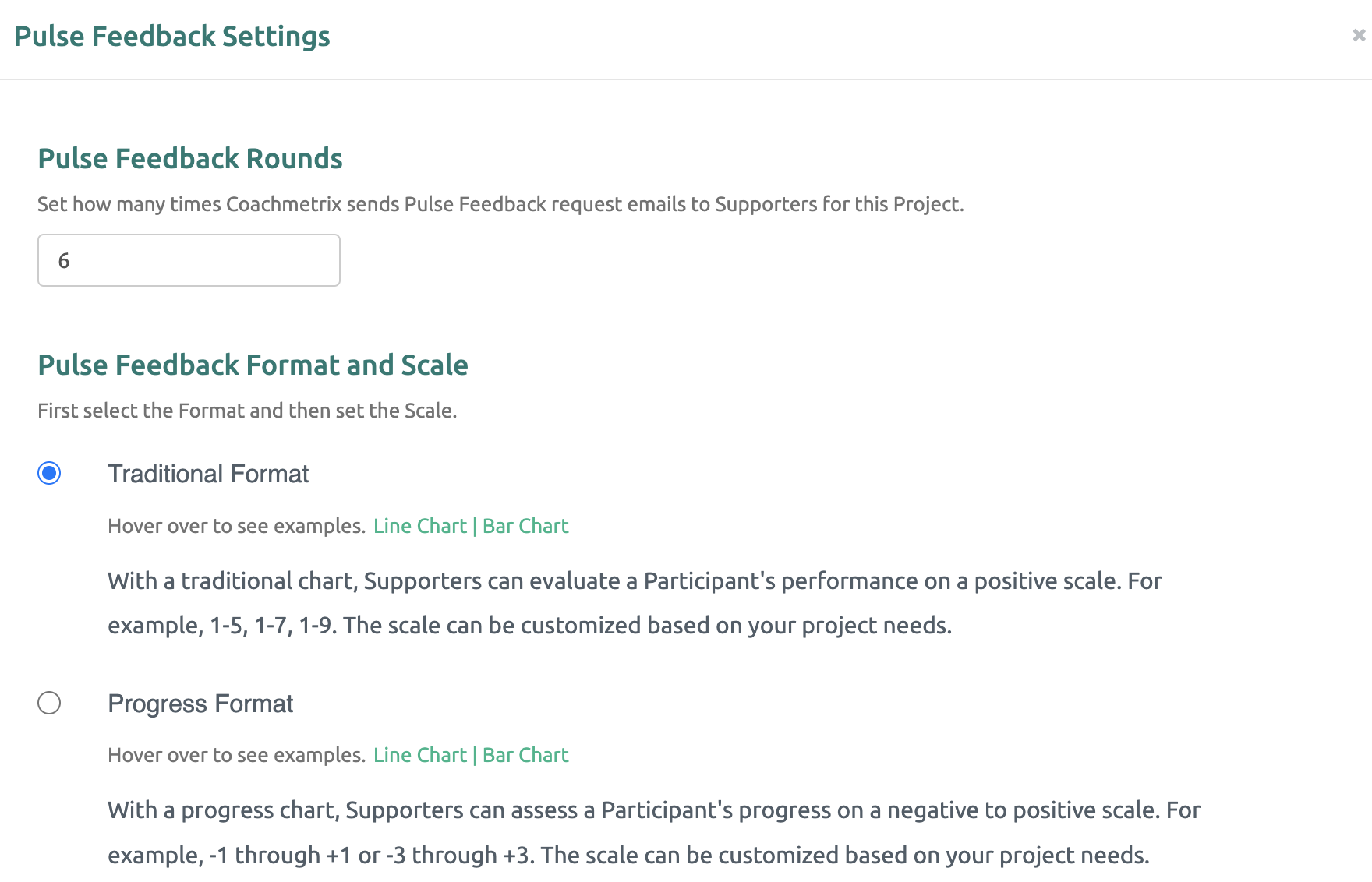
The Coach can set the number of pulse feedback rounds for the project. The number can be adjusted throughout the engagement.
The Coach can select the appropriate Format (Traditional or Progress).
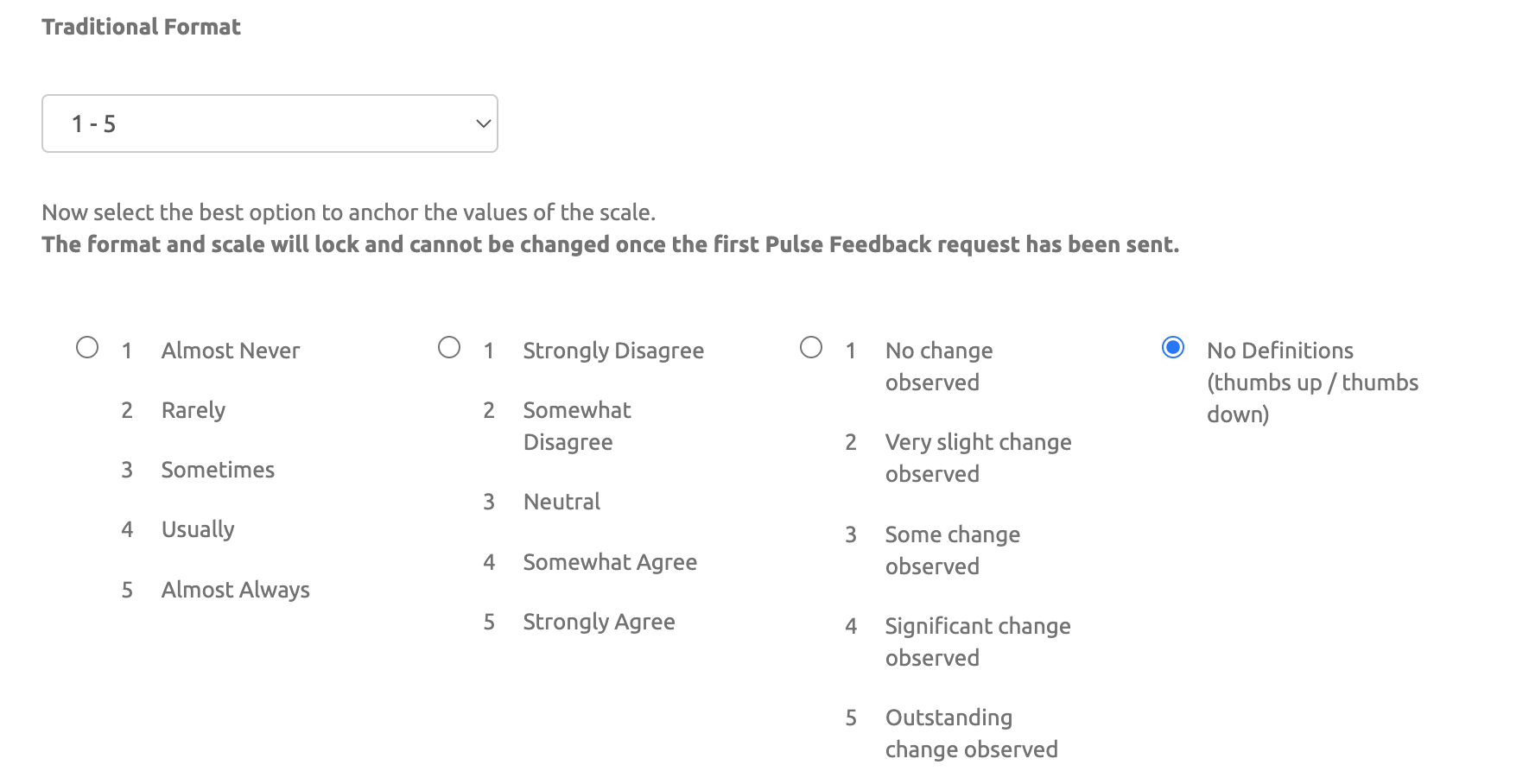
Then select a Scale from the drop-down options.
The anchor options for each scale are displayed under the selected scale. Select the Anchors that are best suited for the Pulse Feedback process.
Click here to see the Scale Options with Anchors.
NOTE: These cannot be changed once the Pulse Feedback has begun.
The Coach can set the Privacy Setting for the Pulse Feedback.
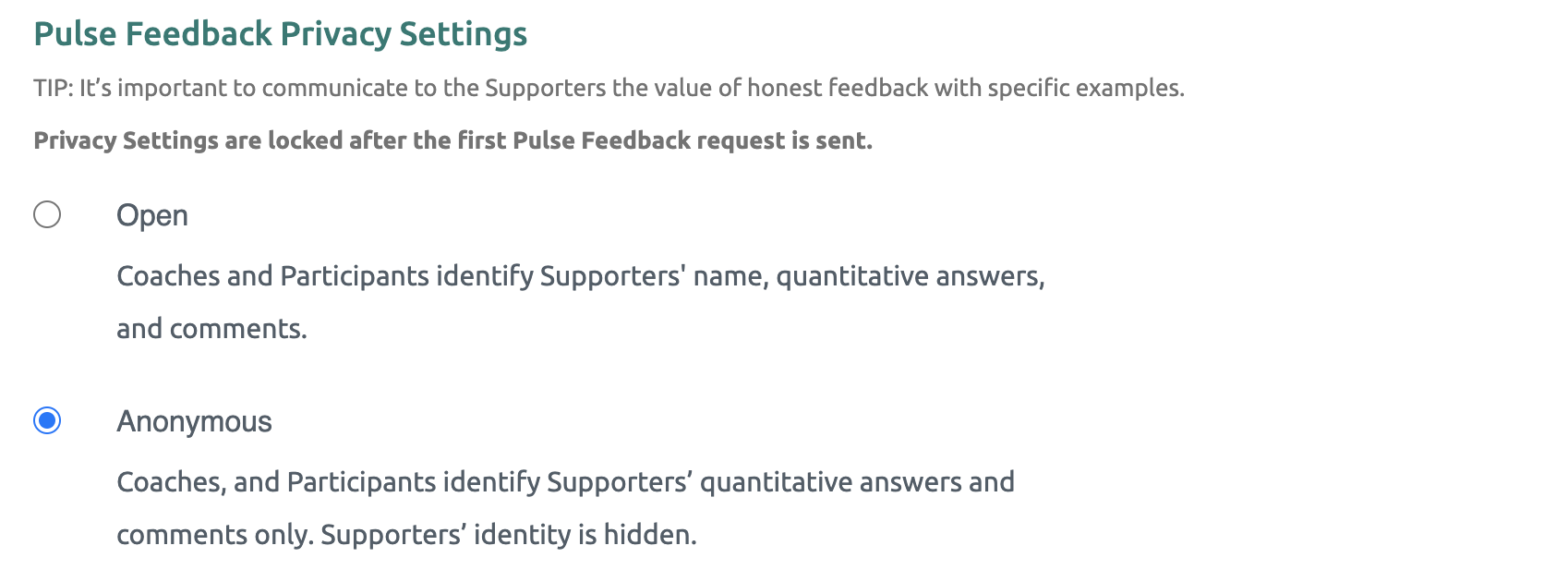
NOTE: These cannot be changed once the Pulse Feedback has begun.
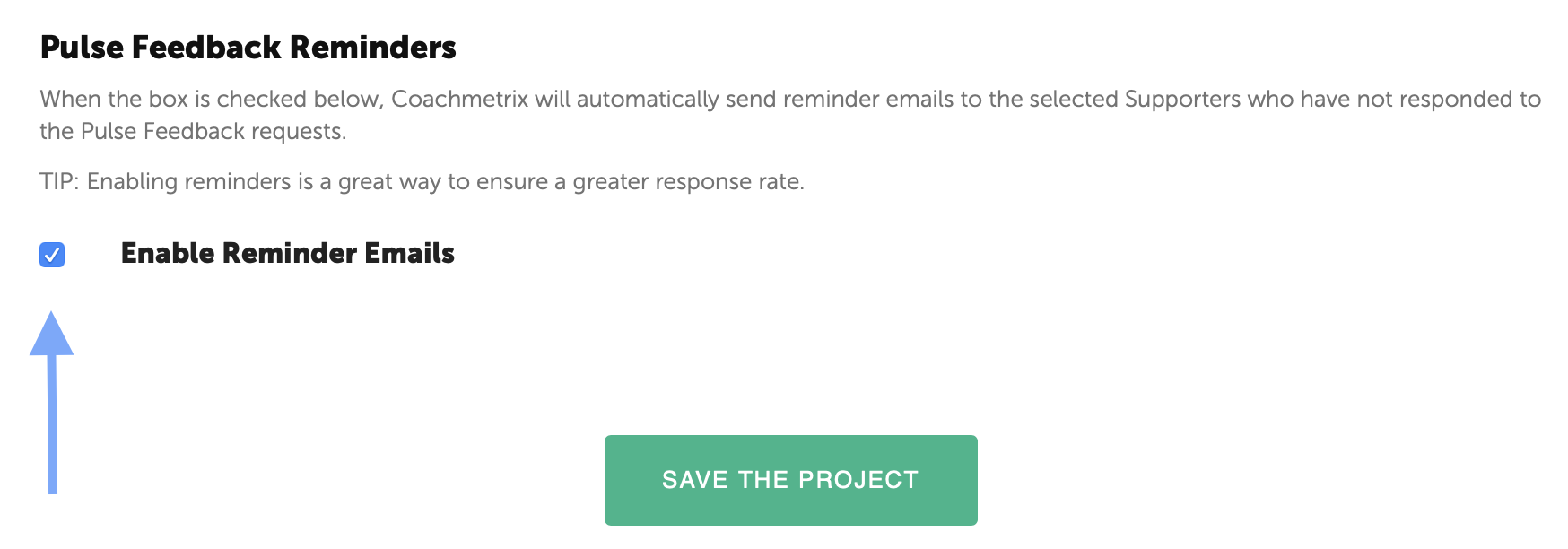
The Coach can enable reminders. If the box is checked, reminders will be sent to those Supporters and Participant that haven't responded to a Pulse Feedback survey request. Reminders are sent every other day (for a total of 3 reminders).
Participant level Settings - Immediate Pulse Feedback
These setting must be set for each Participant on the Project.
Only the Coach can manually kick-off the Immediate pulse feedback request.
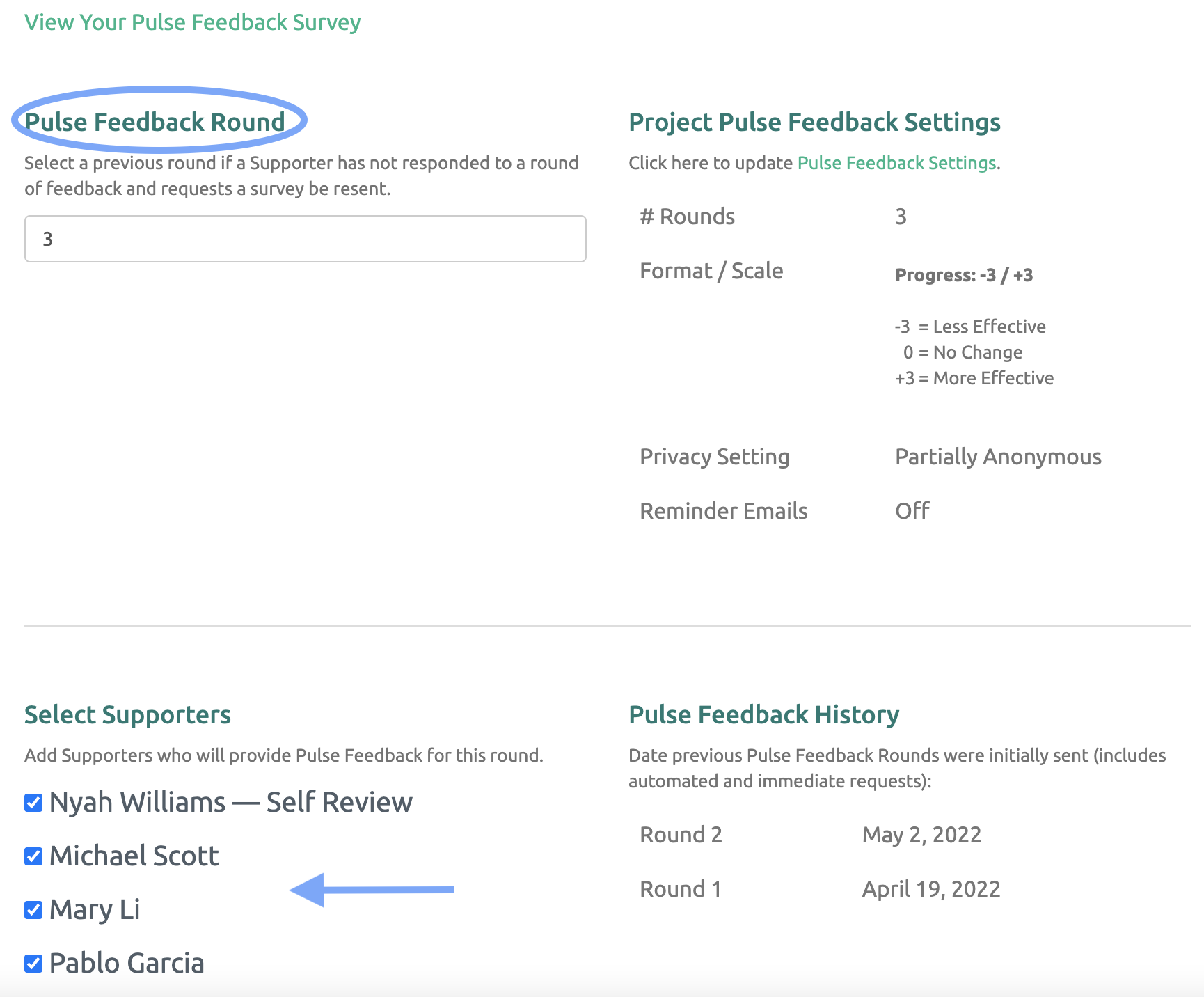
The system will default to the next round of Pulse Feedback. You have the option of sending a Pulse Feedback request for a previous round by adjusting the number.
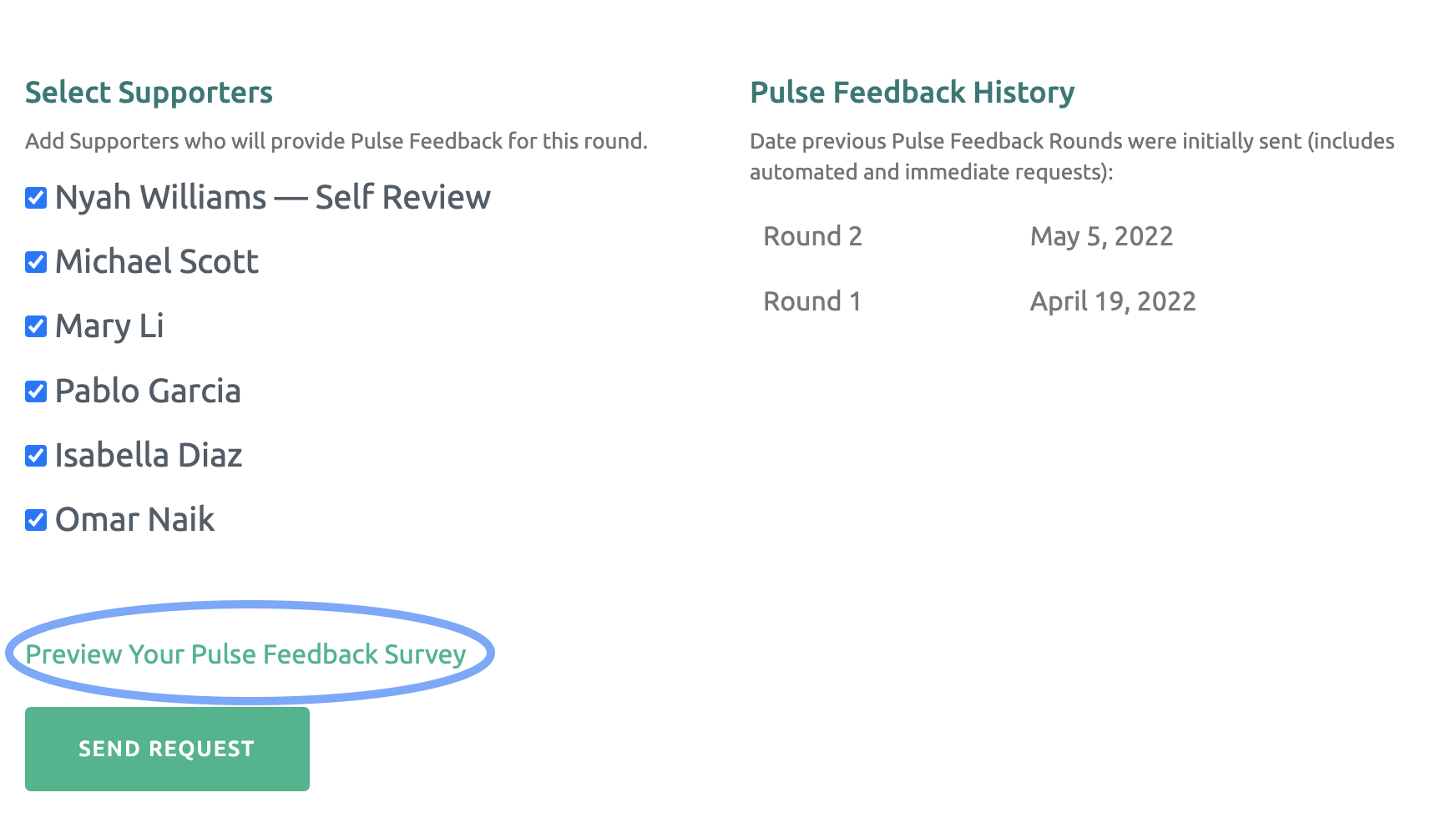
Next, select the Supporter(s) to receive the Pulse Feedback request. Finally, click “Request Pulse Feedback” and the request will be sent Immediately.
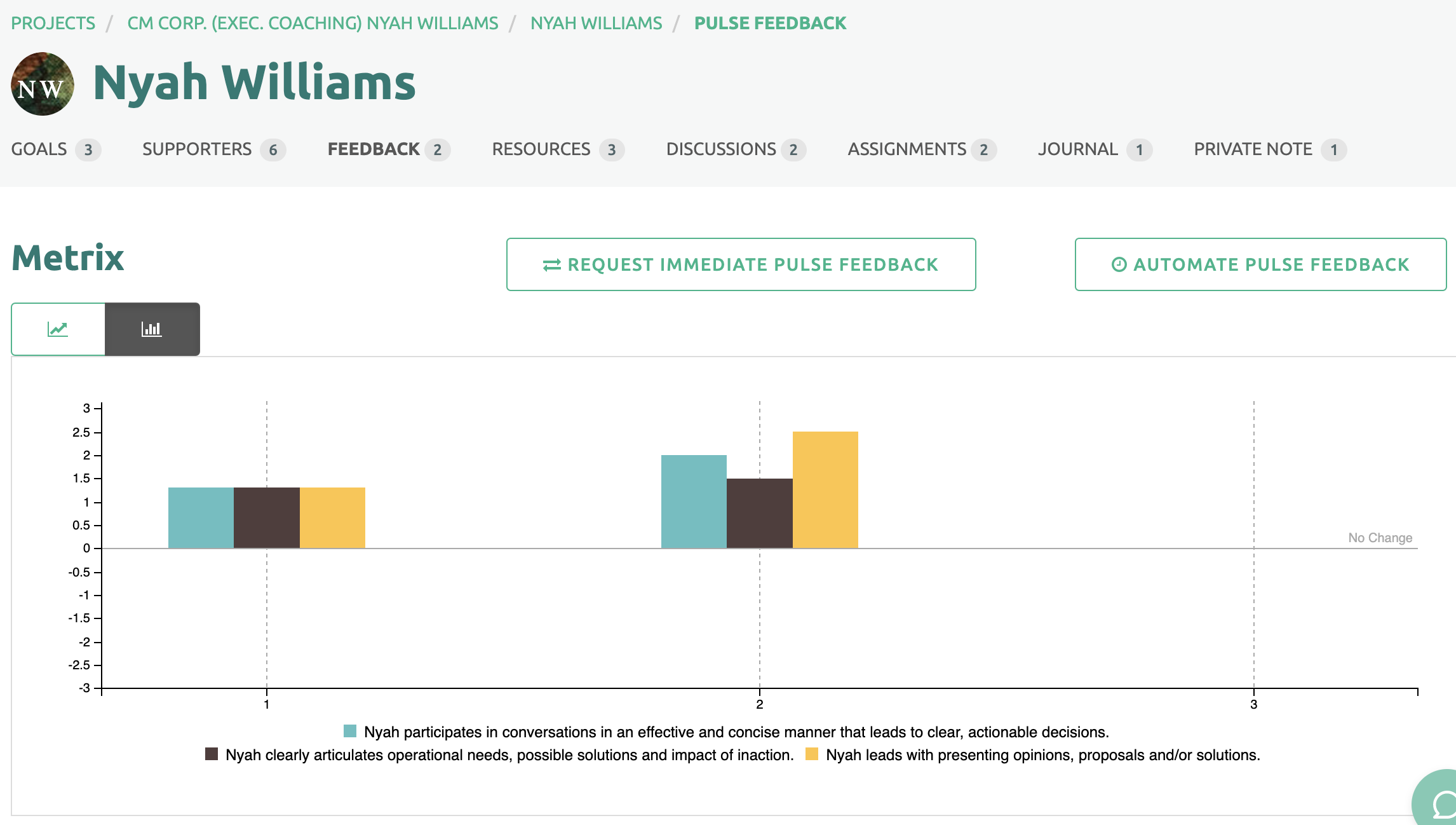
To view Participant Level Settings start on the Participant's page. Click the Pulse Feedback link under the Participant's name and then click the "Request Immediate Pulse Feedback" button in the middle of the page.
The system will default to the next round of Pulse Feedback. You have the option of sending a Pulse Feedback request for a previous round by adjusting the number appropriately.
Next, select the Supporter(s) to receive the Pulse Feedback request. Finally, click “Request Pulse Feedback” and the request will be sent Immediately.
Review the Pulse Feedback Survey
To review the Pulse Feedback Survey, click on the green link above the Save button: "Preview Your Pulse Feedback Survey". (This survey is only for display purposes, it is not active.)
Pulse Feedback request emails
When the Pulse Feedback requests are sent (either on an automated schedule or on demand), the Supporter(s) and Participant receive an email similar to the example below.
NOTE: The email is sent from Coachmetrix (noreply@coachmetrix.com).
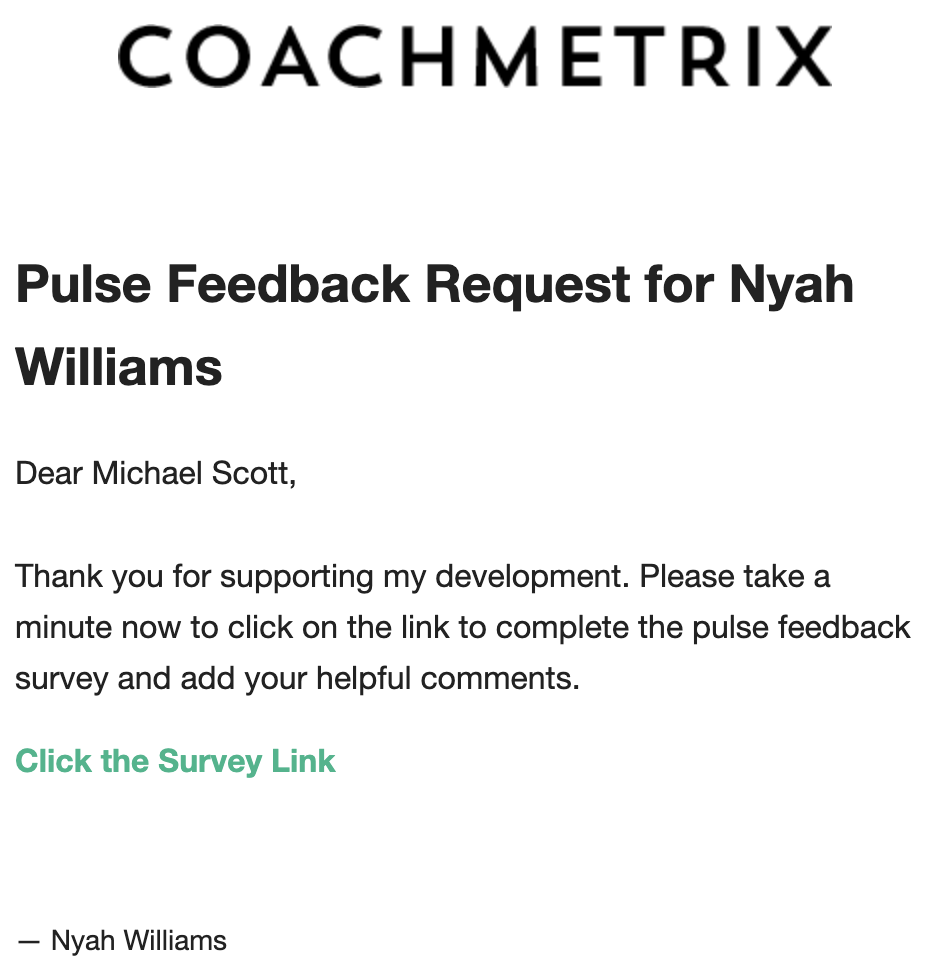
To access the Pulse Feedback survey, the Supporter(s) click the link within the email they received. This will open a landing page with the Pulse Feedback survey.
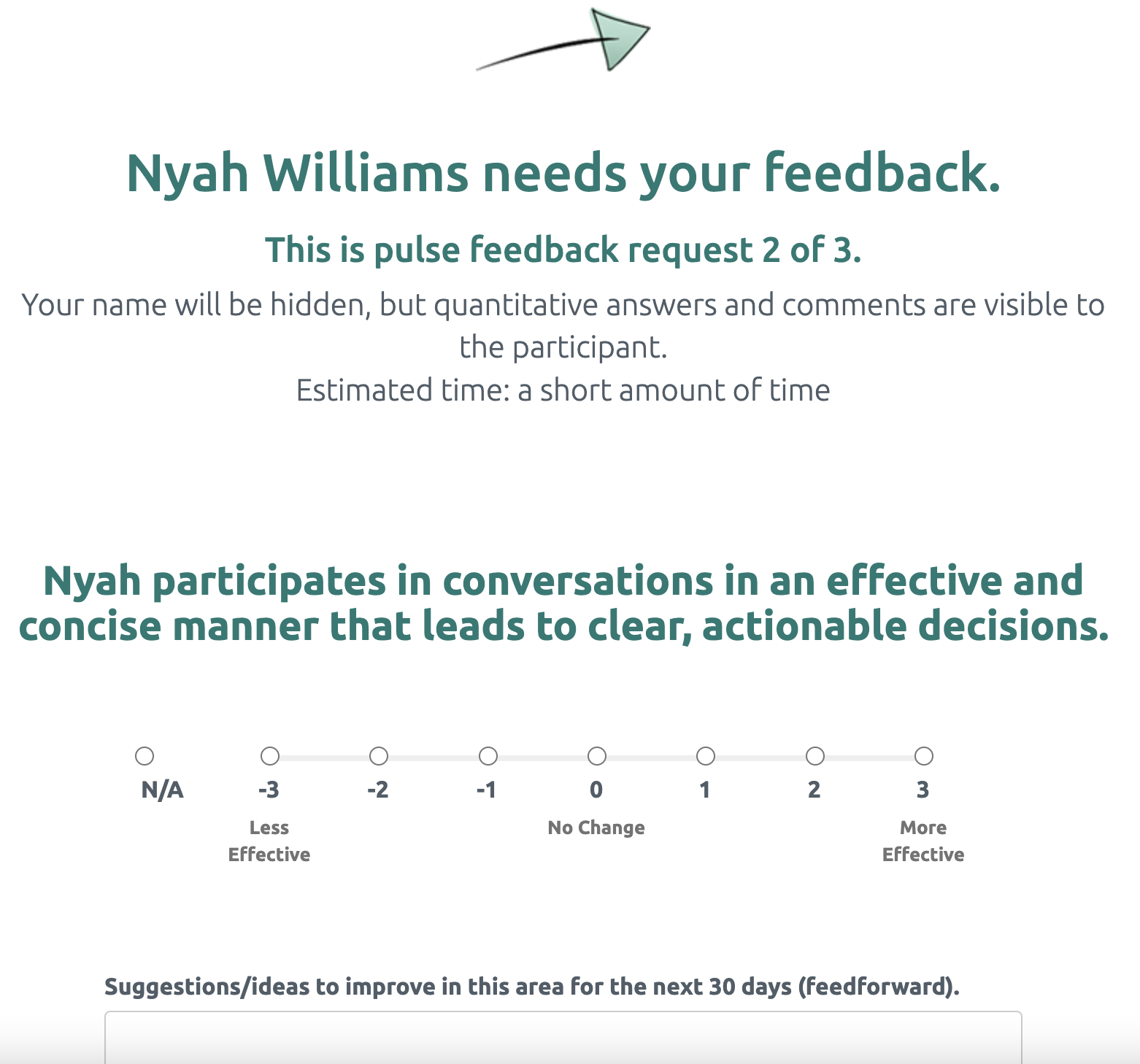
An example of the Pulse Feedback survey is below.
Responding to A Pulse Feedback Survey Request
The Participant's name is displayed at the top as well as where this request falls within the program (number of rounds). Each of the Goals assigned are displayed with the established scale and a comments text box.
Once the Participant and Supporter(s) have completed the survey, they click the green Submit button at the bottom of the page. The assessment scores and comments are immediately displayed for the Coach and Participant to view on the platform.