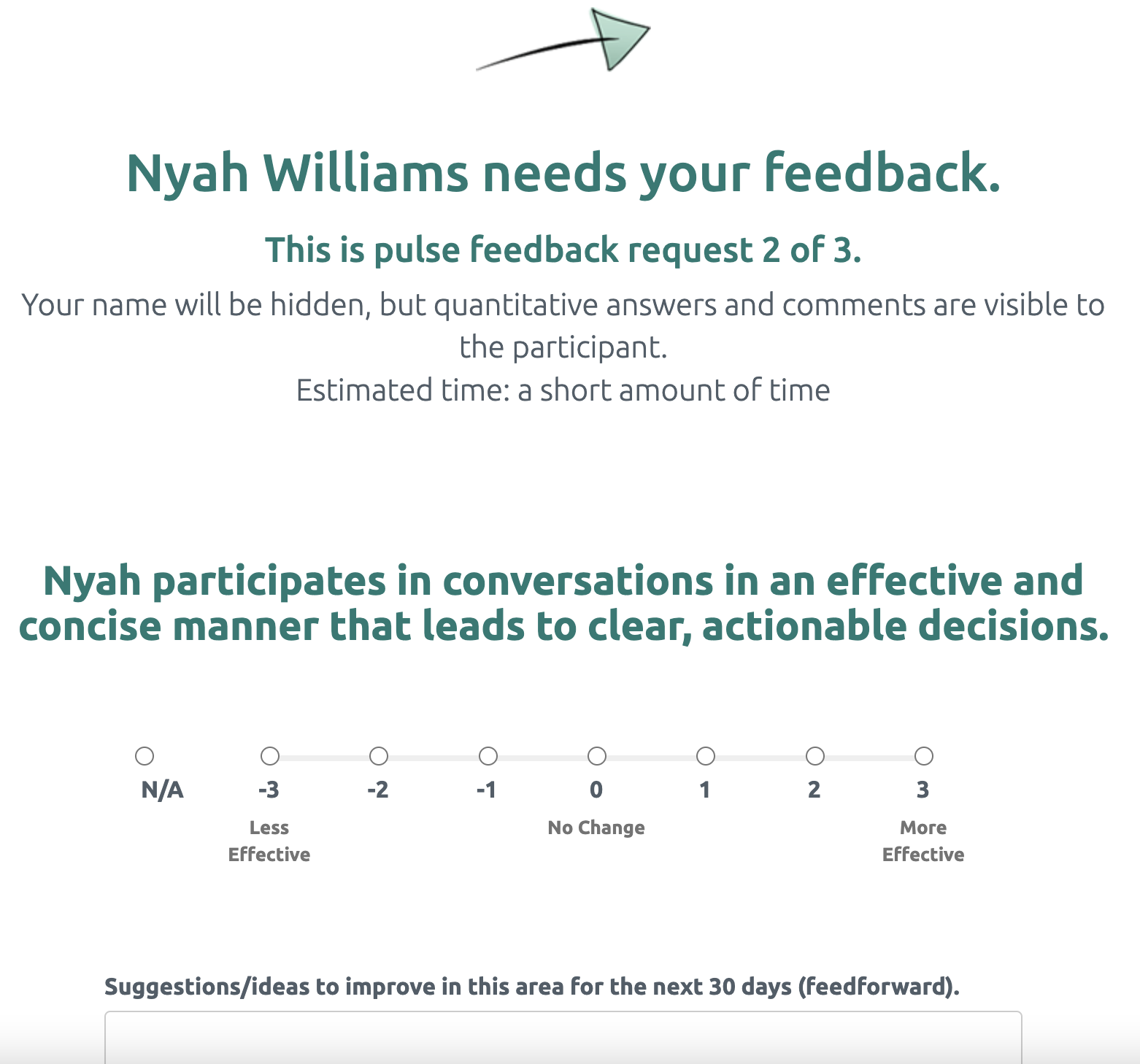
When selecting the settings for Pulse Feedback, Coaches can now choose definitions to help anchor the values of their chosen scale.
Note: The Format, Scale and Privacy settings cannot be changed once the pulse feedback process has been initiated.
Pulse Feedback Settings
Remember, these settings are applicable to all participants on the project.
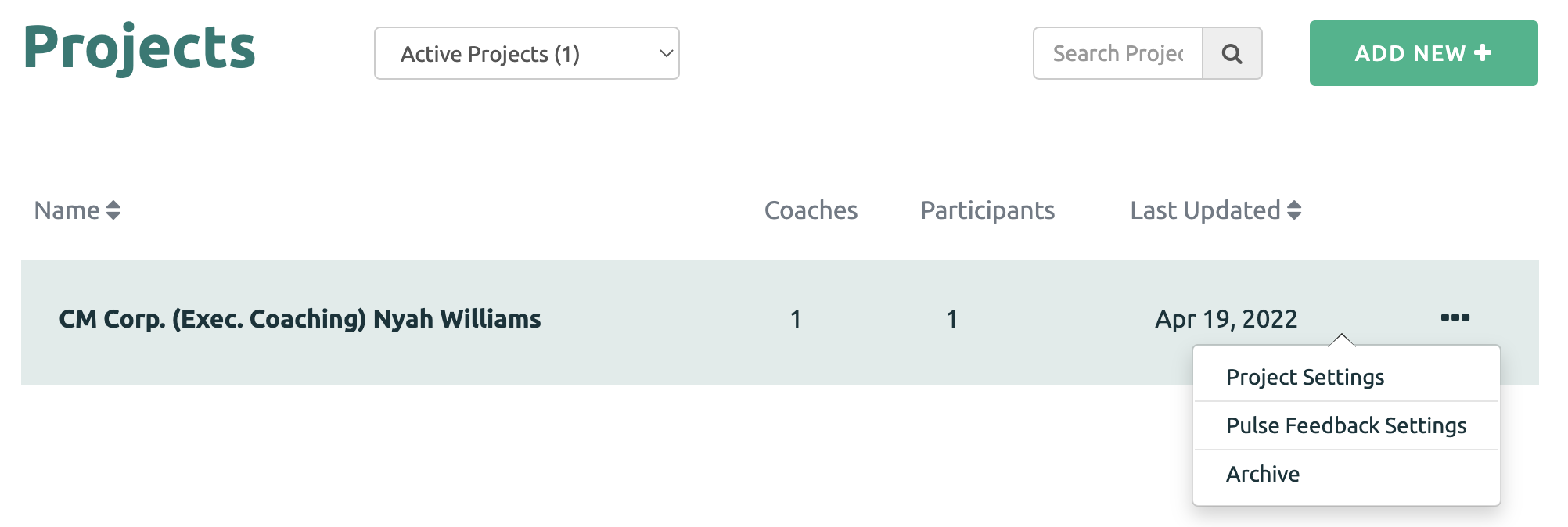
Project Level Settings are found by clicking the three dots next to the Project name. Then select the Pulse Feedback Setting option.
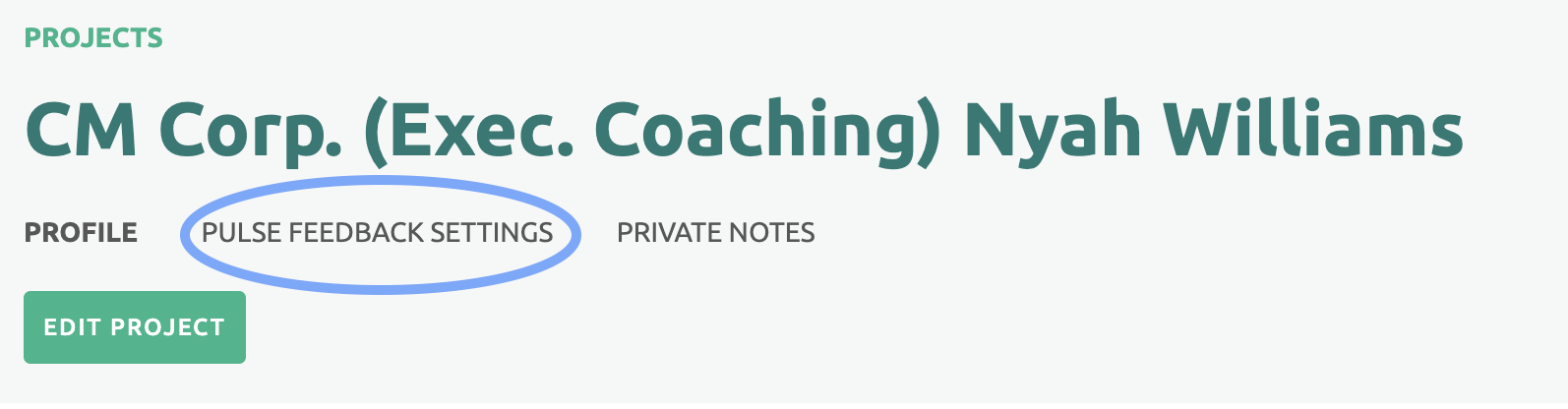
You can also find the Pulse Feedback Setting on the Project page under the Project name.
NOTE: These settings are applicable to all of the Participants on the Project.
Selecting the Format, Scale and Anchor
After the number of Pulse Feedback Rounds is set, select the appropriate format (Traditional or Progress).
The Coach can set the number of pulse feedback rounds for the project. The number can be adjusted throughout the engagement.
The Coach can select the appropriate Format (Traditional or Progress).
Then select a Scale from the drop-down options.
The anchor options for each scale are displayed under the selected scale. Select the Anchors that are best suited for the Pulse Feedback process.
Click here to see the Scale Options with Anchors.
NOTE: These cannot be changed once the Pulse Feedback has begun.
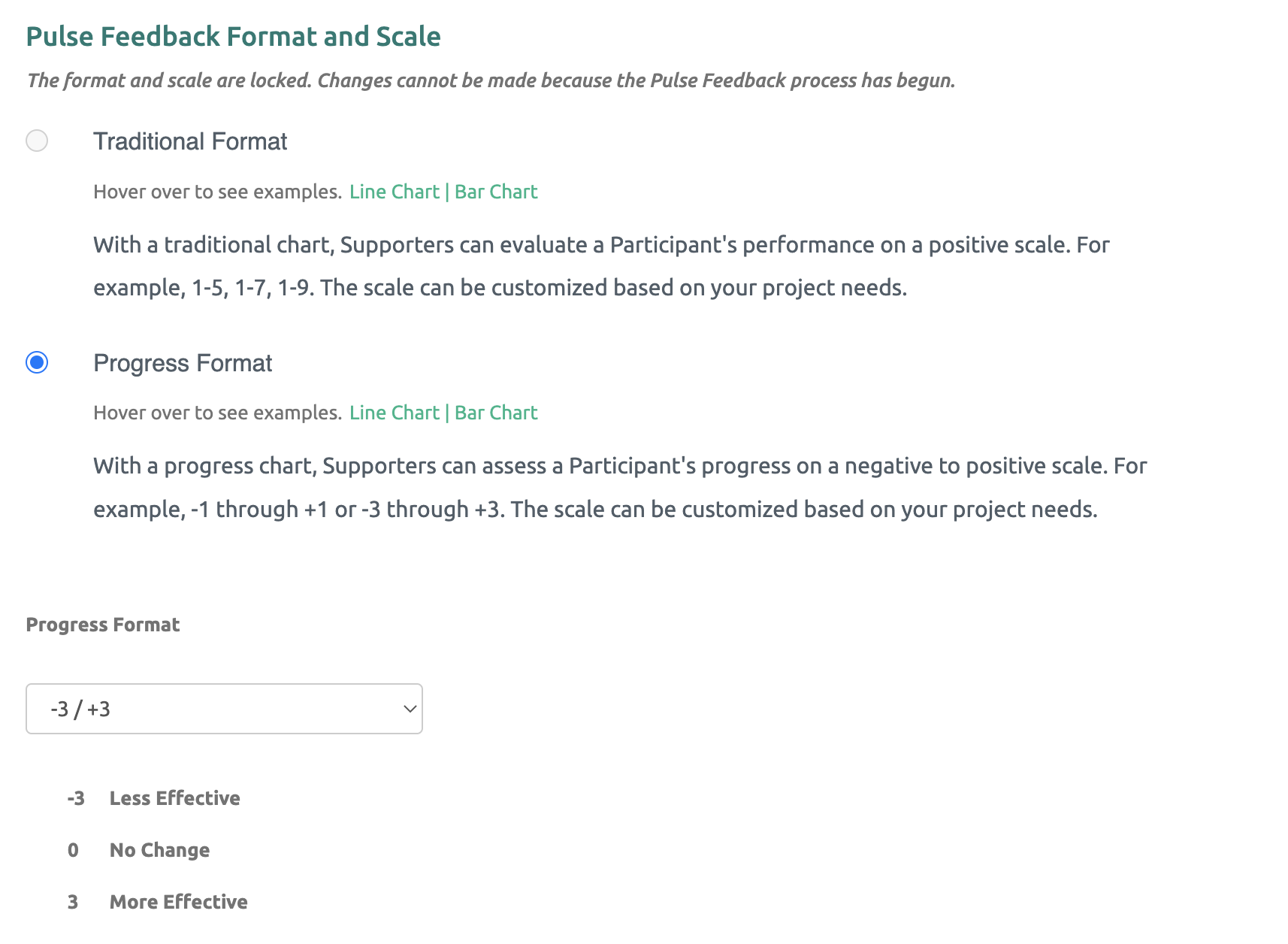
The anchor options for each scale are displayed under the selected scale. Select the anchors that are best suited for the Pulse Feedback process.
Click here to see the Scale Options with Anchors.
Finally, determine the Privacy Setting and enable the email reminders. When finished, click the "Save the Project" button at the bottom of the page.
Anchor Values displayed on Pulse Feedback Survey
The selected anchors are displayed under the numeric values on the Pulse Feedback sent to the Participant and Supporters.