

Coaches can now apply tags to Resources in their library. This enables more efficient organization, the ability to search by tags, and easily retrieve specific Resources.
A tag is a short, concise label of the Resource's content. One or more tags can be applied to a Resource. Some examples of tags include:
360
Communication
Feedback
Goal Setting
Onboarding
ROI
Session 1
Teams
A tag can be applied to a new Resource or one already in your library.
Creating A Tag for A New Resource
To begin, first click the "Add New+" button on the Resource page of your library. After you have populated the title, type a tag into the Tags text box.
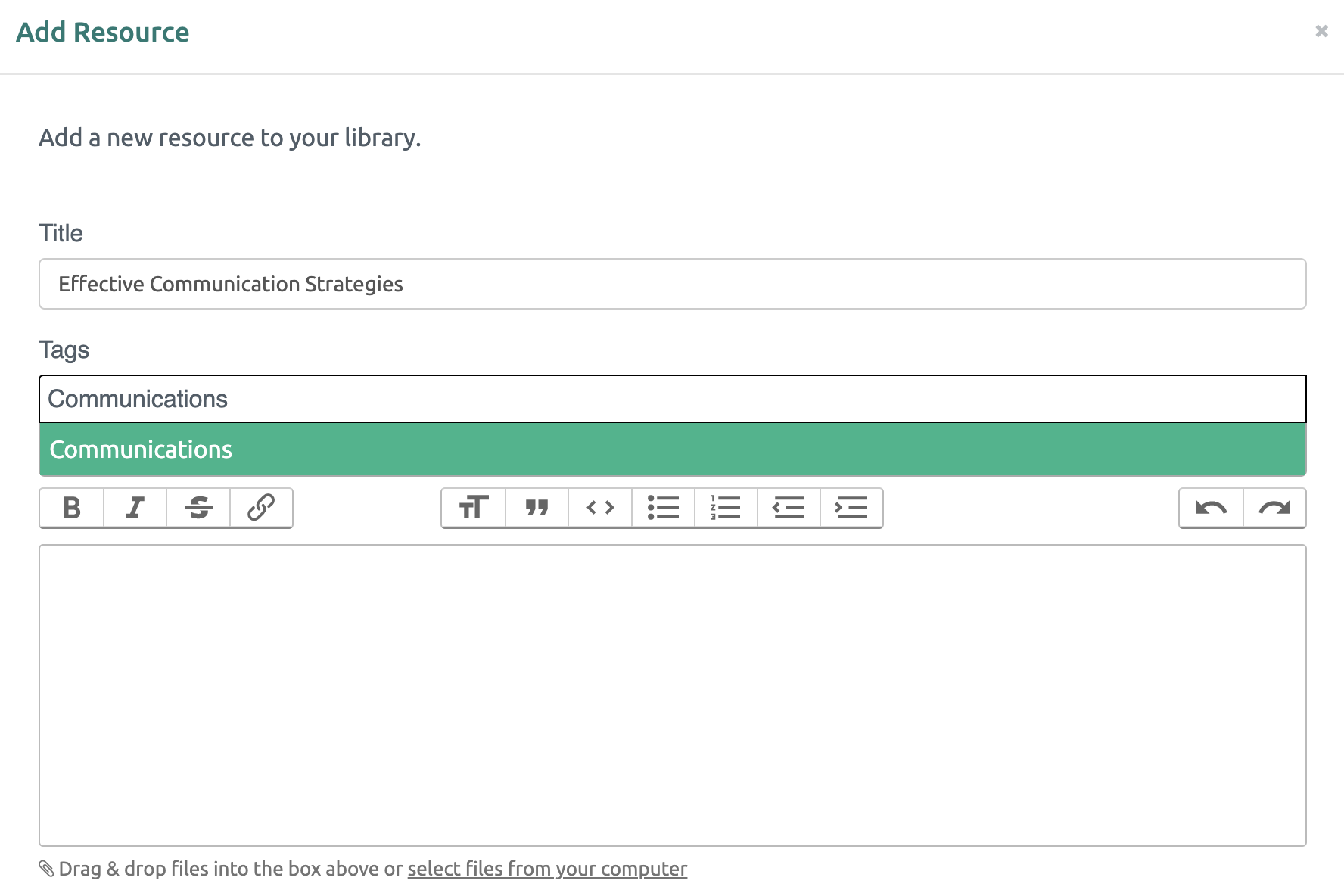
Complete the Resource by adding text, video, images and/or files in the content box.
Save by clicking the green "Add the Resource" button.
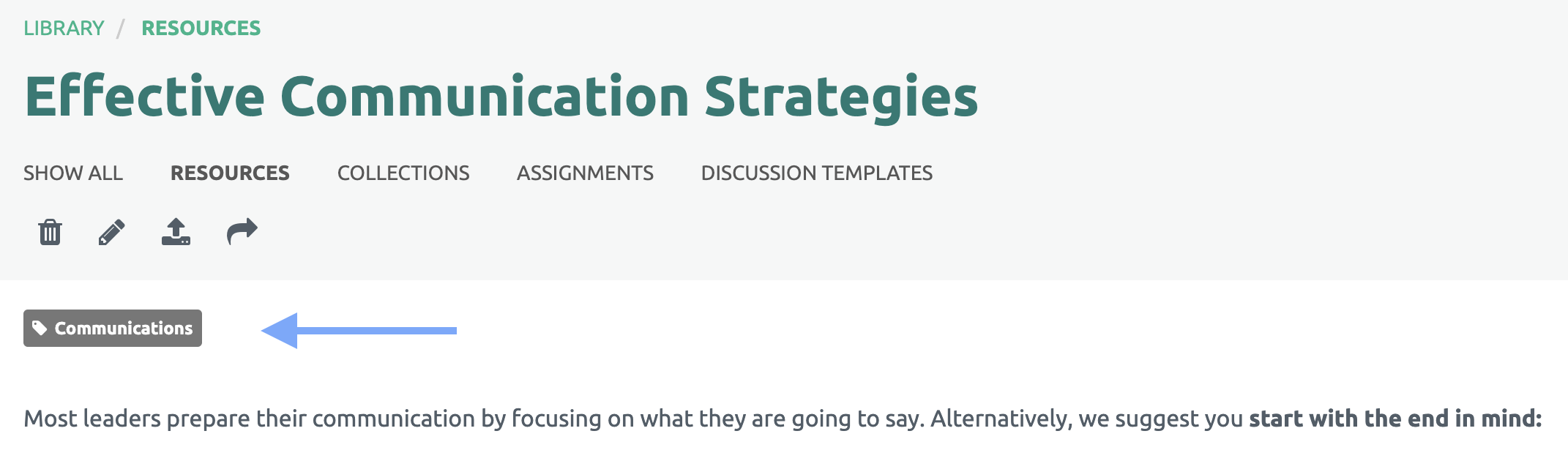
The new tag is displayed at the top of the Resource.
Creating A Tag for An Existing Resource
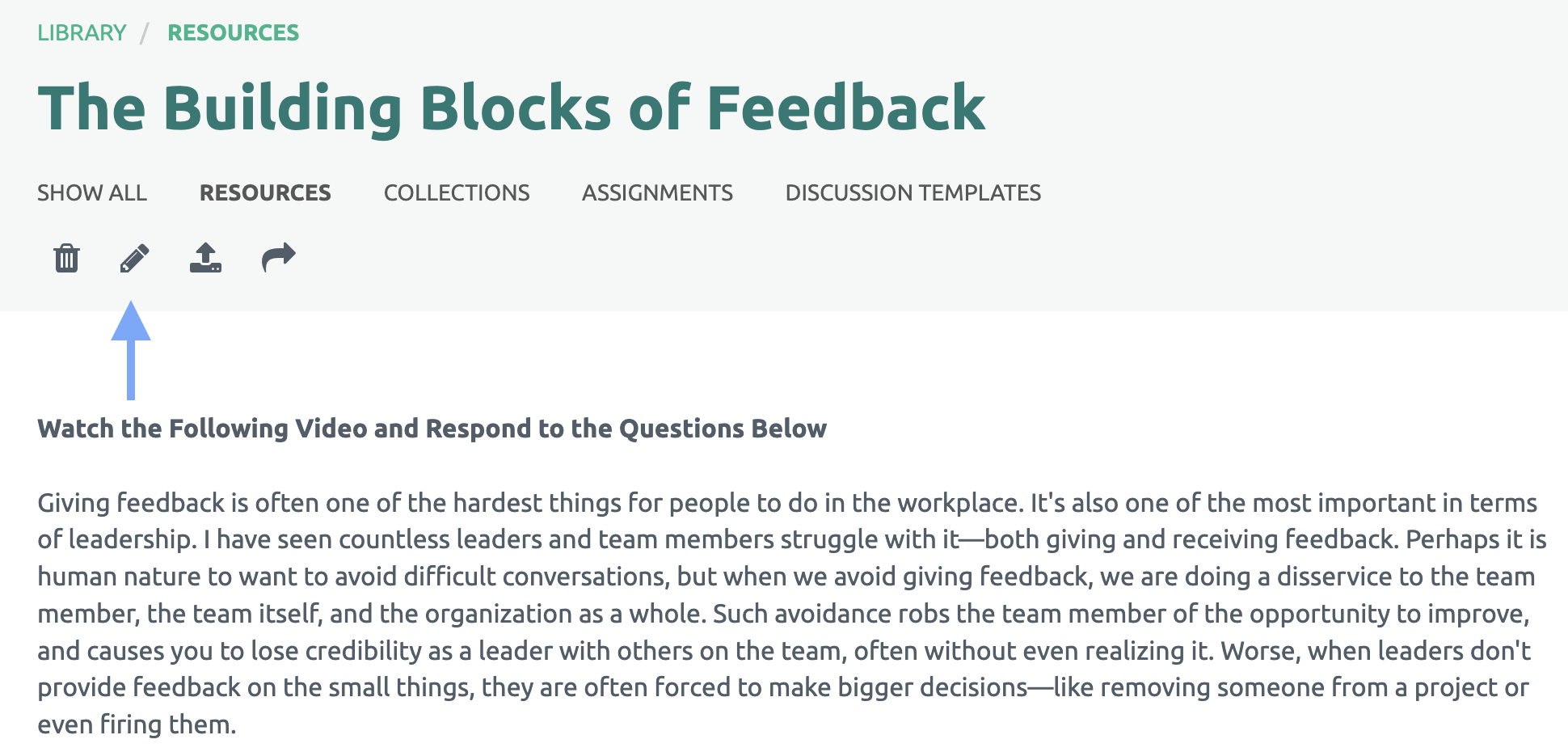
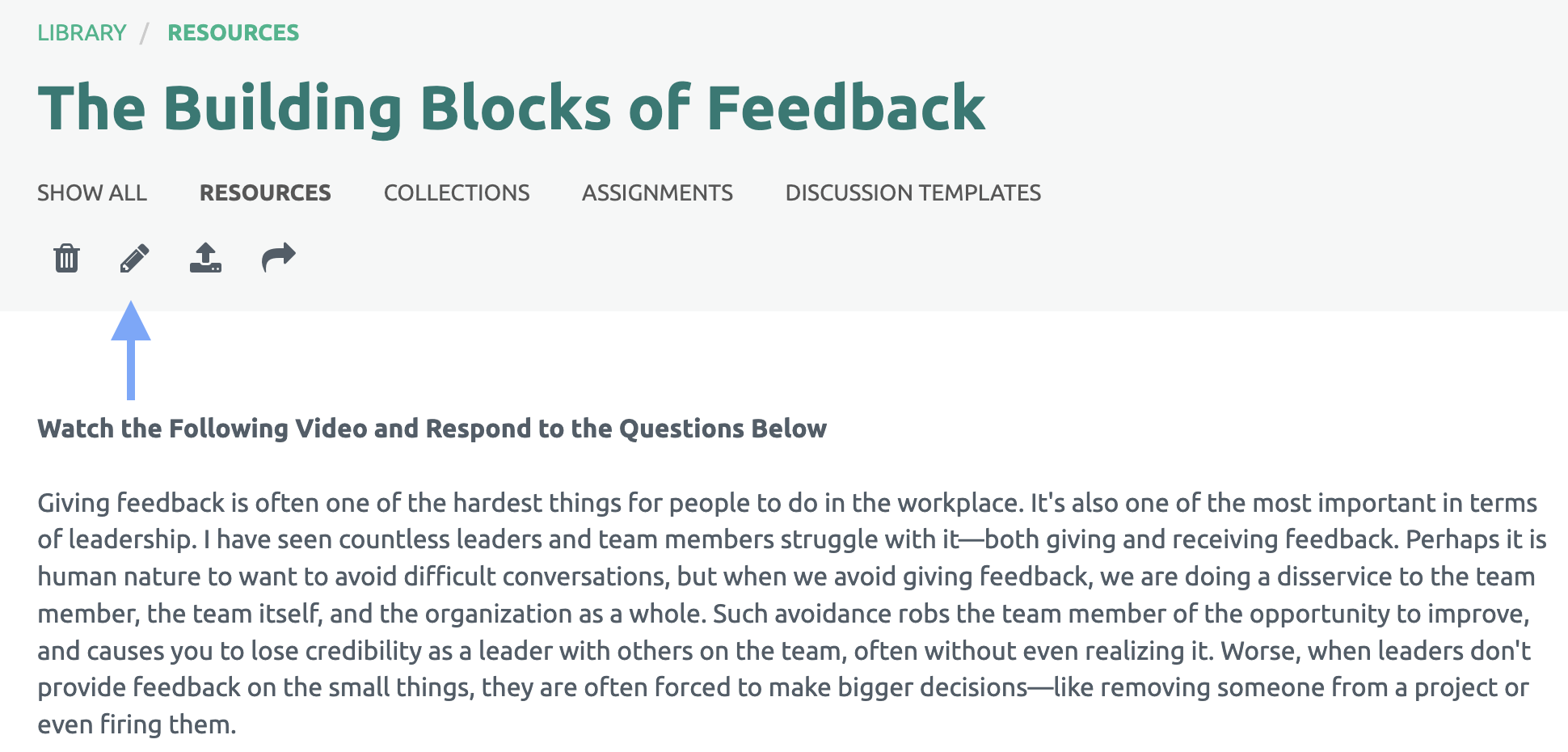
Start by selecting a Resource, then clicking the Pencil icon to Edit.
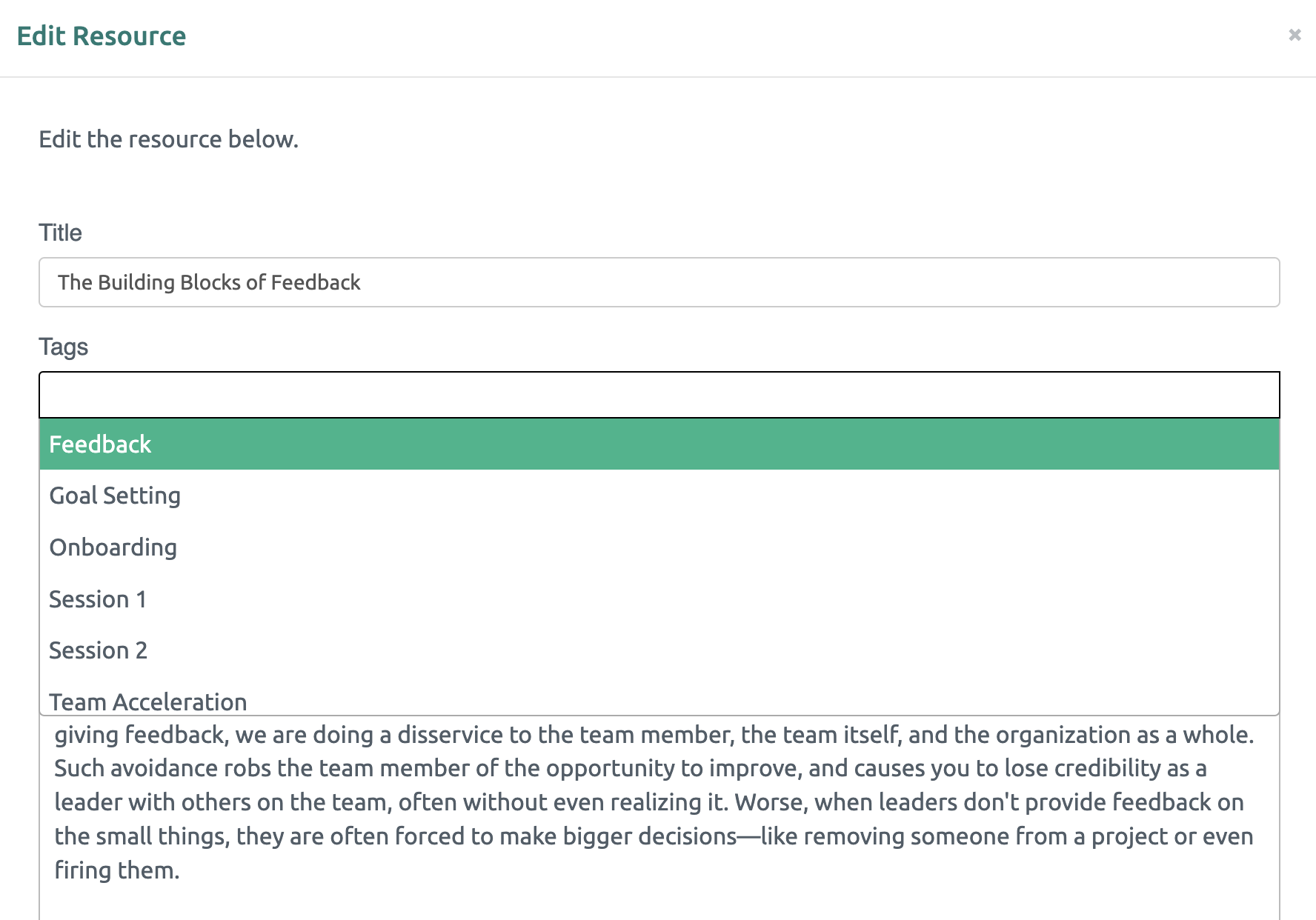
The Tags box will display the tags that are available. You may also create a new tag. Select the tag. (Multiple tags can be assigned to a Resource.)
Save by clicking the green "Save the Resource" button at the bottom.
The tags assigned are displayed at the top of the Resource.
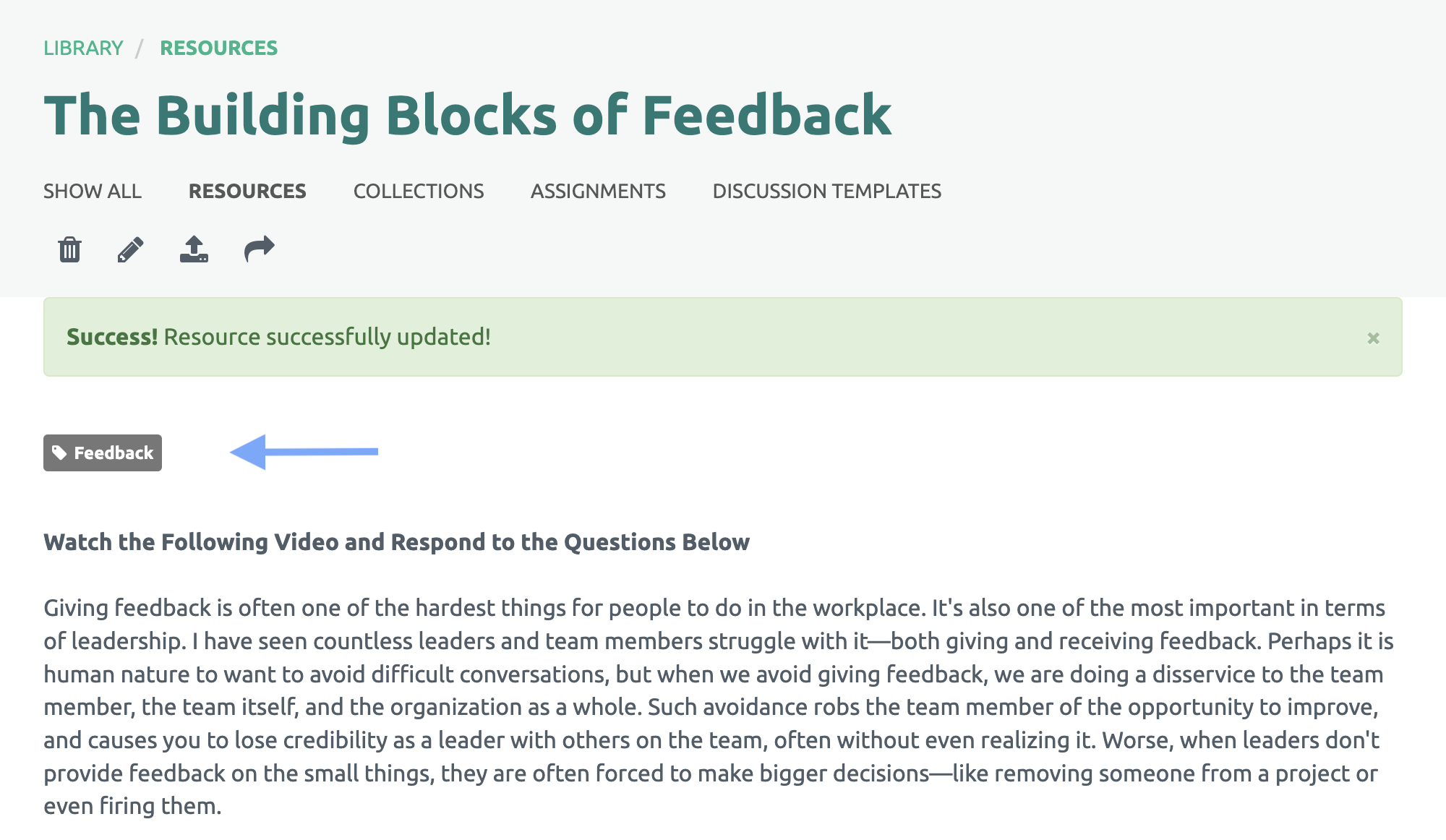
Searching with Tags
To search tags, start on the Resource page.
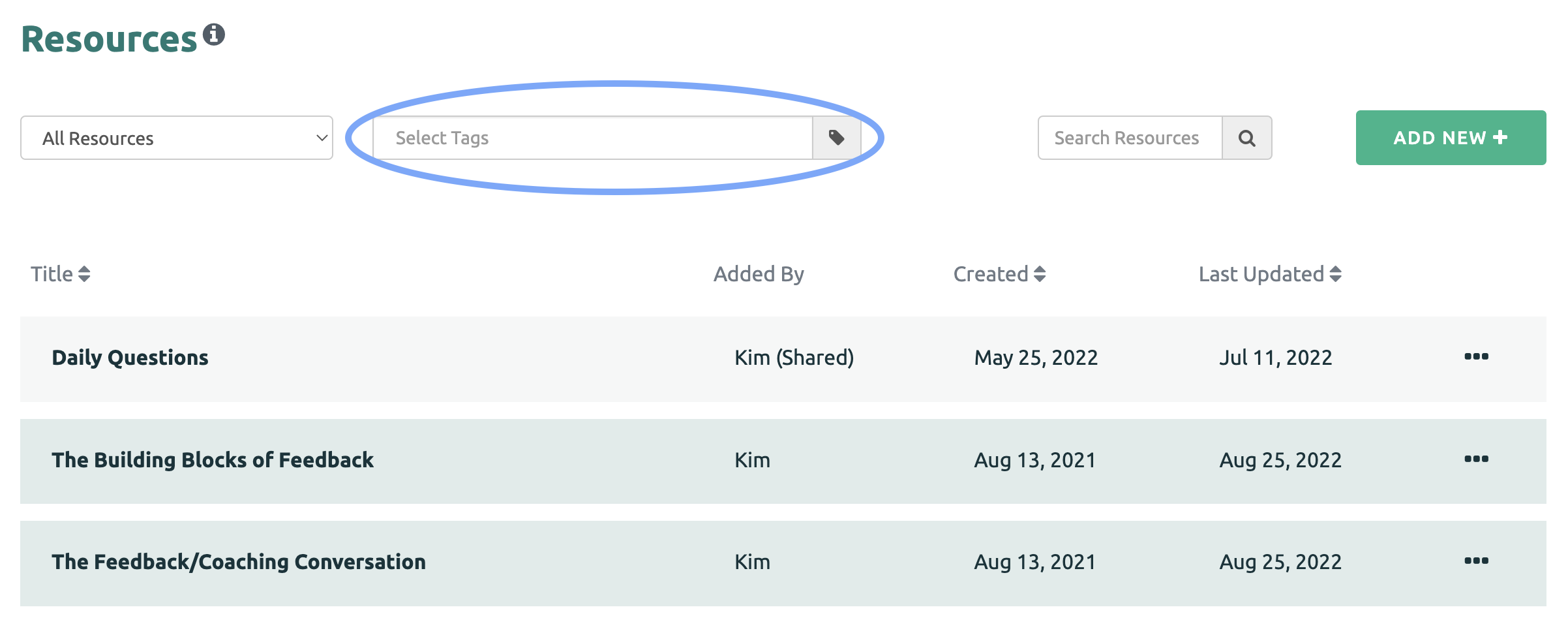
You can view all of the tags on the account by clicking on the search box.
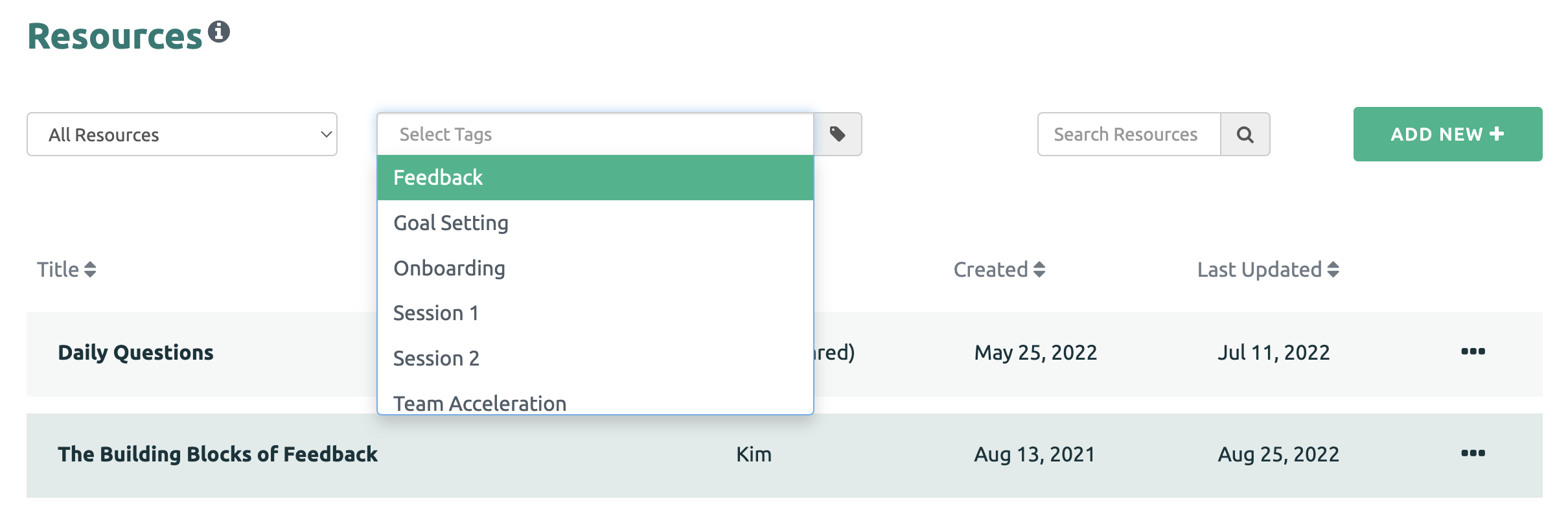
To search for Resources with specific tags, either type the tag into the search box or select the tags from the list. Only the Resources with the selected tag(s) are displayed.
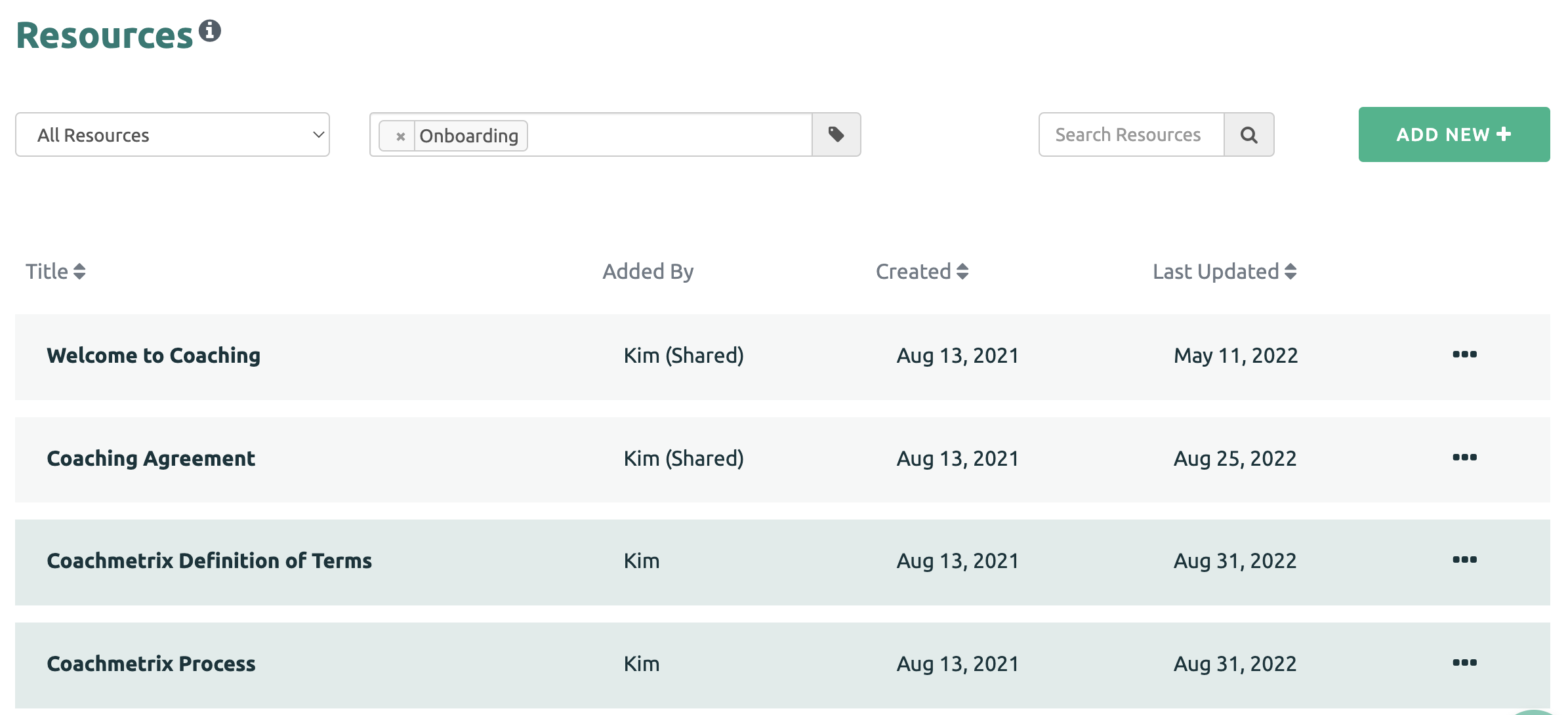
To begin a new search, click the "x" on the selected tags.
Editing Your Tags
To change a tag assigned to a Resource, first select the Resource. Next click the pencil icon to edit.
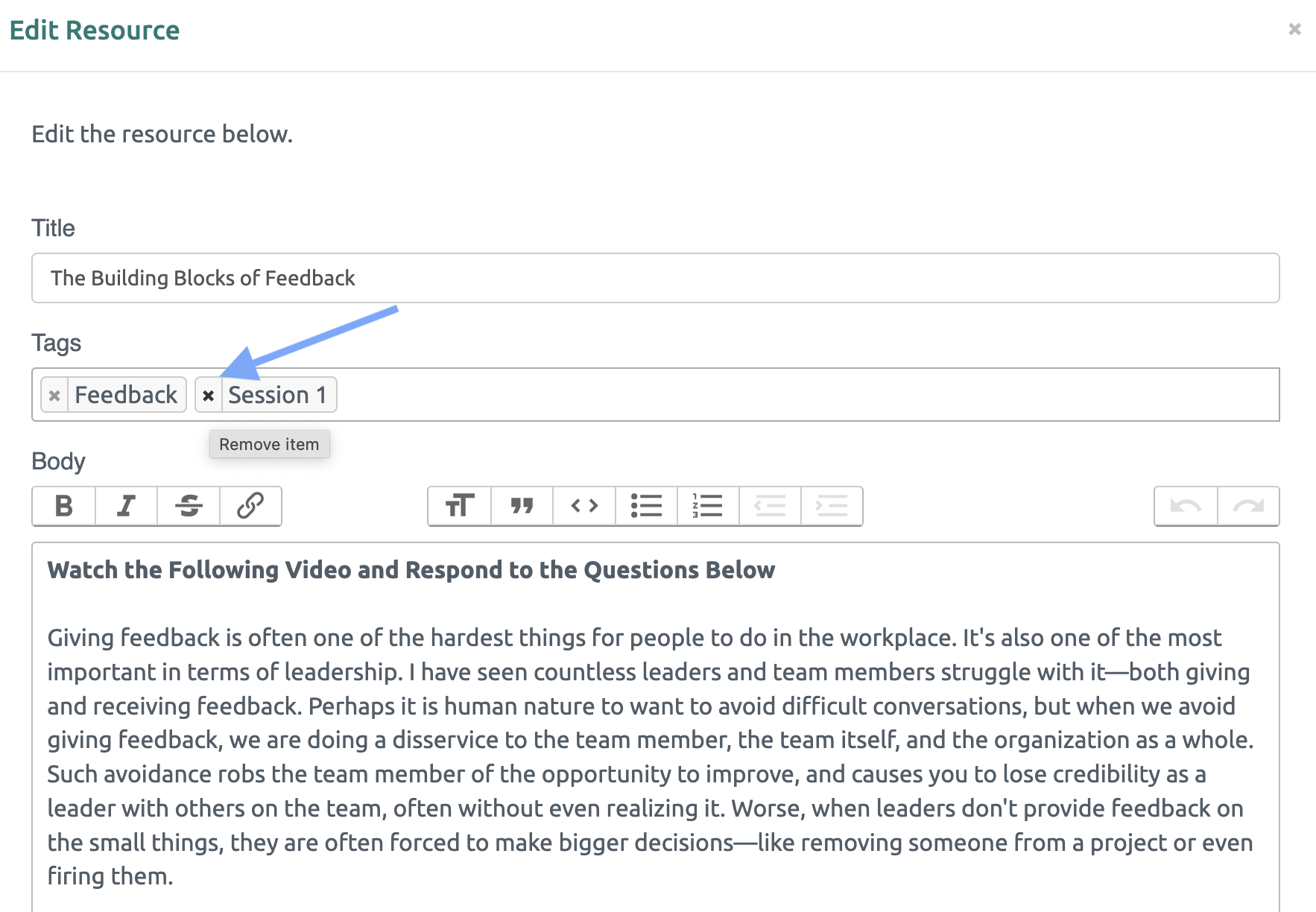
To remove a tag, click the "x" beside the tag. You may select another tag from the list or create a new tag.
Save by clicking the green "Save the Resource" button at the bottom.
NOTE: If the deleted tag is assigned to only one Resource, it will delete the tag entirely.